
Redditech
简介
Redditech 是一个 IT 项目,我们在其中必须使用 Reddit API(https://www.reddit.com/dev/api/)来构建一个移动应用程序。
因此,我们使用了一些工具和语言
– Dart SDK 版本:2.13.1(https://dart.ac.cn/)
– Flutter 版本:2.2.1(https://github.com/flutter/flutter.git)
– HTML(超文本标记语言)
– Swift
– Android Studio 版本:2020.3.1 Patch 2(https://developer.android.com.cn/)
目录
用户文档
本文档的这部分是为用户准备的,将解释如何安装和使用该应用程序。
如何安装
1. 点击应用程序。
2. 点击“使用 Reddit 登录”按钮
.png)
3. 输入您的 Reddit 账号(用户名和密码)
4. 向下滚动并接受条款
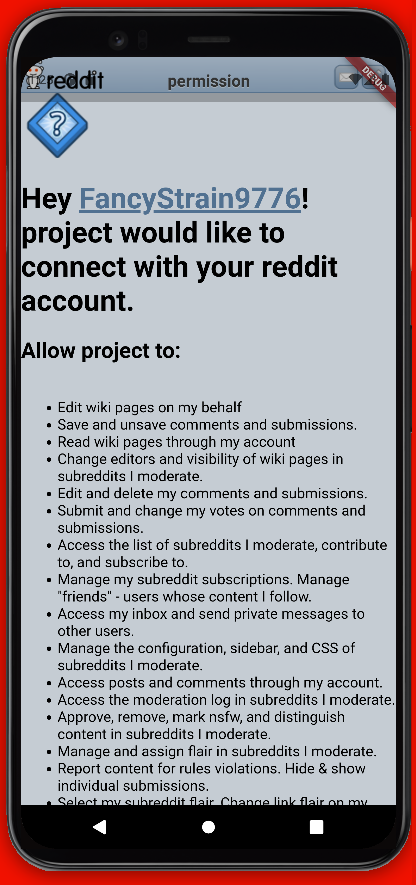
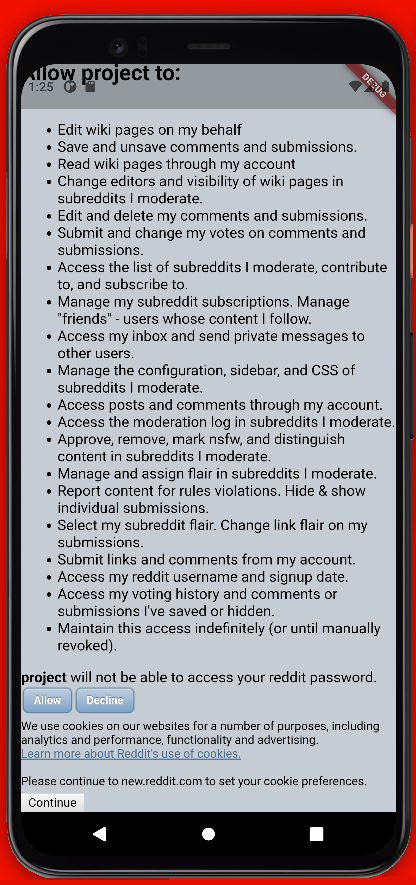
现在您已进入应用程序,我邀请您在功能部分查看我们应用程序的不同功能,以了解应用程序的用途。
功能
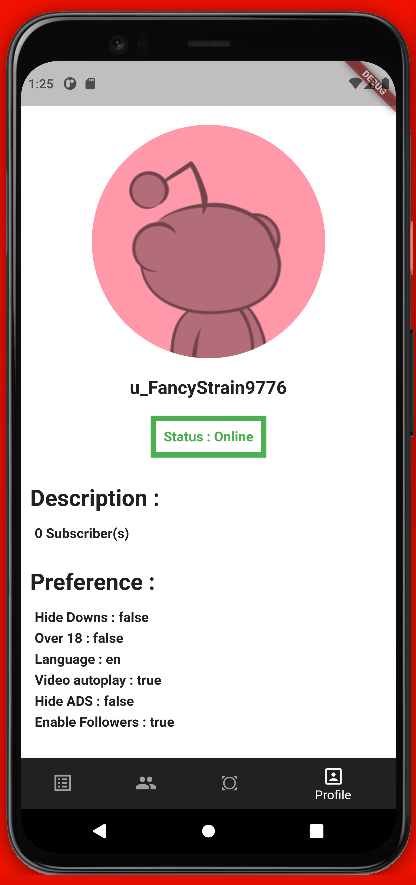
– 个人资料 –
您可以在此处找到不同的信息,例如显示订阅者数量的描述,以及一个偏好设置部分,该部分将允许您了解您在 Reddit 账号上所做的多种配置。
– 最新 –
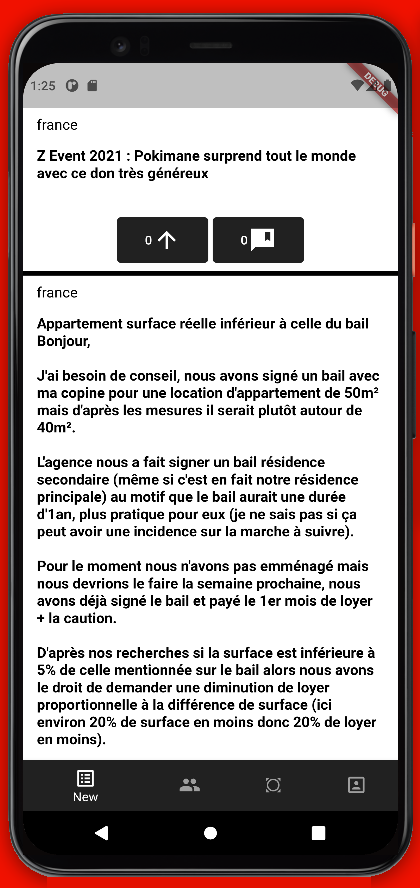
在最新部分,您将根据您的偏好找到新的帖子。
– 热门 –
在热门部分,您将找到 Reddit 上最受欢迎的帖子。
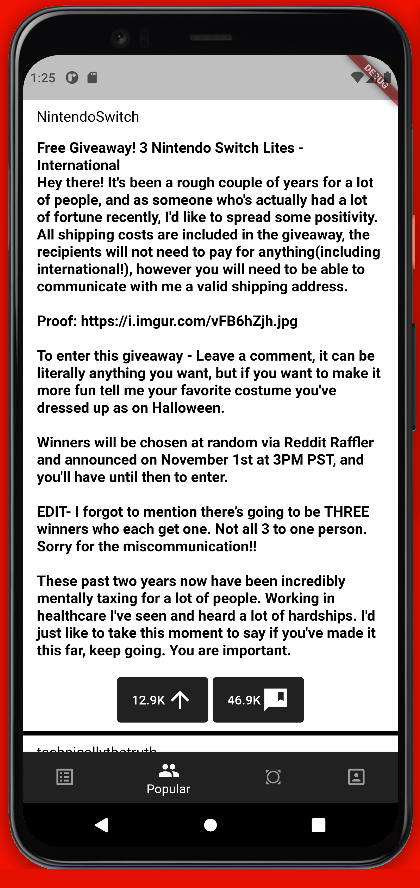
– 全部 –
在全部部分,您将找到其他内容。
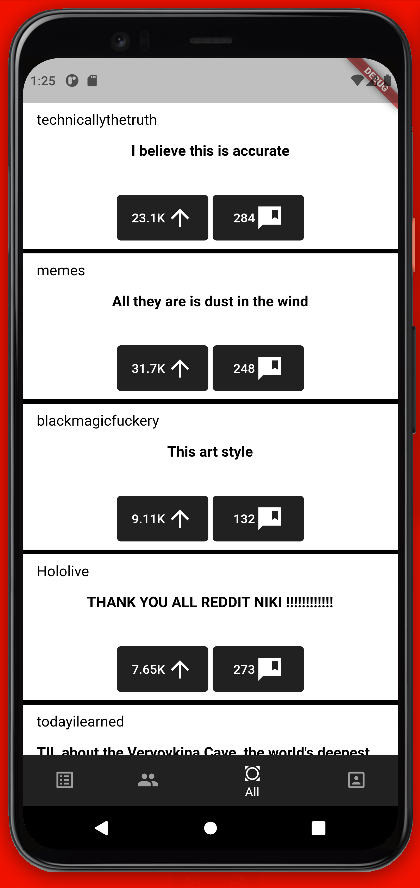
– 评论和点赞 –
在每个帖子下方,您还可以看到一个向上箭头(点赞)和一个聊天气泡(评论)。它会显示每个帖子获得的评论和点赞数量。
开发者文档
本文档的这部分是为开发者准备的,将带您了解代码中最重要的部分。
安装/配置
要在模拟器上测试我们的应用程序,您需要安装 **Flutter** 和 **Android Studio**。如果您还没有安装,我邀请您前往简介部分并使用链接安装这些应用程序。
后端
从 API 获取数据
getme() async {
    final response = await Dio().get(
      "https://oauth.reddit.com/api/v1/me",
      options: Options(headers: <String, dynamic>{
        'Authorization': 'Bearer $accessToken',
        'content-Type': 'application/x-www-form-urlencoded',
      }),
    );

    Map<dynamic, dynamic> result = response.data;
    Map<String, dynamic> data = Map<String, dynamic>();
    for (dynamic type in result.keys)
      data[type.toString()] = result[type];
}
WebView
Widget build(BuildContext context) {
    return Container(
    child:
       WebView(
        initialUrl: 'https://www.reddit.com/api/v1/authorize.compact?client_id=$client_id&response_type=code&state=test&redirect_uri=$redirect_url&duration=permanent&scope=identity,edit,flair,history,modconfig,modflair,modlog,modposts,modwiki,mysubreddits,privatemessages,read,report,save,submit,subscribe,vote,wikiedit,wikiread',
        javascriptMode: JavascriptMode.unrestricted,
        onWebViewCreated: (controller) {
          controller = controller;
        },
        navigationDelegate: (NavigationRequest request) {
          if (request.url.startsWith("https://")) {
            var pos = request.url.lastIndexOf('=');
            var code = (pos != -1)
                ? request.url.substring(pos + 1, request.url.length - 2)
                : request.url;
            postCode(code);
            return NavigationDecision.prevent;
          }
          return NavigationDecision.navigate;
        },
      )
    );
  }
前端
底部导航栏
BottomNavigationBar(
        backgroundColor: Colors.red[900],
        items: const <BottomNavigationBarItem>[
          BottomNavigationBarItem(
            icon: Icon(Icons.list_alt),
            label: 'New',
          ),
          BottomNavigationBarItem(
            icon: Icon(Icons.people),
            label: 'Popular',
          ),
          BottomNavigationBarItem(
            icon: Icon(Icons.all_out),
            label: 'All',
          ),
          BottomNavigationBarItem(
            icon: Icon(Icons.portrait),
            label: 'Profile',
          ),
        ],
        currentIndex: _selectedIndex,
        selectedItemColor: Colors.white,
        unselectedItemColor: Colors.grey[500],
        onTap: _onItemTapped,
      ),
显示信息
示例
static ProfileViewPicture(src) { ## Example : Function to display the user's picture
    return Container(
      child: ClipOval(
        child: Image.network(
            src,
            fit: BoxFit.fill,
            width: 256,
            height: 256,
        ),
      )
    );
  }
  static ProfileViewRender(name, subscriber, src, hidedowns, over_18, lang, videoAutoplay, hideAds, enableFollowers) { ## Main function to display in window
    return Scaffold(
      backgroundColor: Colors.white,
      body: Center(
        child: Column(
          children: [
            SizedBox(height: 70.0),
            ProfileViewPicture(src), ## Call the function
            ## Call other functions
          ],
        )
      )
    );
  }


