
fluent_ui
使用 Flutter 设计精美的原生 Windows 应用
Unofficial implementation of Fluent UI for Flutter. It’s written based on the official documentation
您可以在此处查看网页版:here
动机
Since flutter has Windows support (currently in stable under an early release flag as of 30/03/2021), it’s necessary to have support to its UI guidelines to build apps with fidelity, since it has support for Material and Cupertino.
See this for more info on the offical fluent ui support
另请参阅
安装
将包添加到您的依赖项
dependencies:
  fluent_ui:
    git: https://github.com/bdlukaa/fluent_ui.git
您可以在此处查看示例应用程序:here
最后,运行 dart pub get 下载包。
使用此库的项目应使用 Flutter 的稳定频道
徽章
您是否在应用中使用此库?您可以使用徽章告知他人

将以下代码添加到您的 README.md 或网站中
<a title="Made with Fluent Design" href="https://github.com/bdlukaa/fluent_ui">
  <img
    src="https://img.shields.io/badge/fluent-design-blue?style=flat-square&color=7A7574&labelColor=0078D7"
  />
</a>
样式
您可以使用 FluentTheme widget 来设置您的 widget 的主题。您可以通过两种方式设置 widget 的样式
- 使用
FluentAppwidget
FluentApp(
  title: 'MyApp',
  theme: ThemeData(
    ...
  ),
)
- 使用
FluentThemewidget
FluentTheme(
  theme: ThemeData(
    ...
  ),
  child: ...,
),
图标

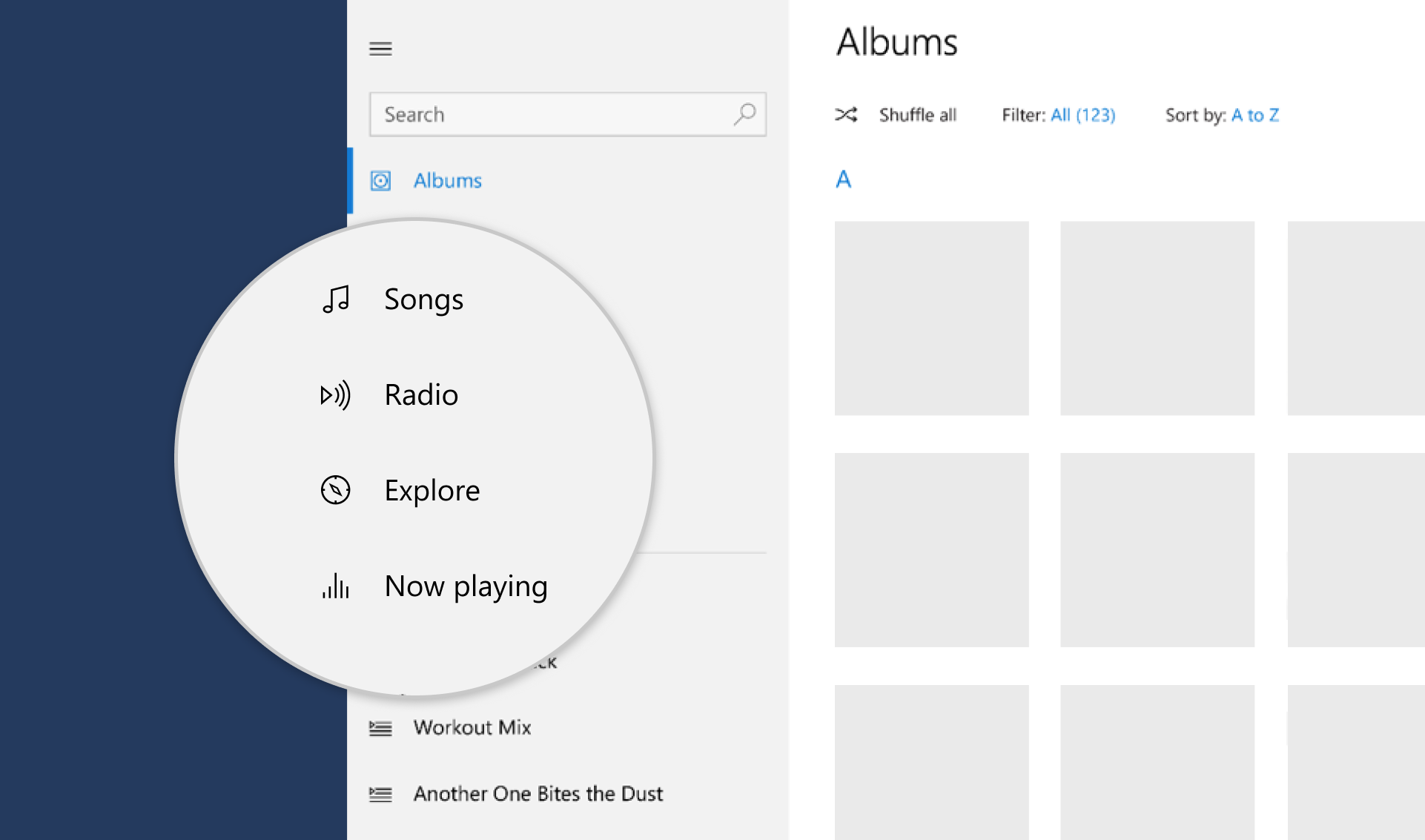
在您的应用中,您可以使用图标来表示一项操作,例如复制文本或导航到设置页面。此库附带一个图标库,因此您可以直接在任何 Icon widget 中调用 FluentIcons.[icon_name]。
Icon(FluentIcons.add),
颜色
此库还附带了 Fluent UI 颜色,因此您可以直接调用 Colors.[color_name]。
TextStyle(color: Colors.black),
可用颜色
Colors.transparentColors.whiteColors.blackColors.greyColors.yellowColors.orangeColors.redColors.magentaColors.purpleColors.blueColors.tealColors.green
强调色
Common controls use an accent color to convey state information. 了解更多。
默认情况下,强调色为 Colors.blue。但是,您也可以自定义应用的强调色以反映您的品牌。
ThemeData(
  accentColor: Colors.blue,
)
To use the system’s accent color, you can use the plugin system_theme made by me :). It has support for (04/01/2021) Android, Web and Windows.
import 'package:system_theme/system_theme.dart';

ThemeData(
  accentColor: SystemTheme.accentInstance.accent.toAccentColor(),
)
亮度
您可以更改主题亮度,以更改应用的颜色为
-
Brightness.light -
Brightness.dark
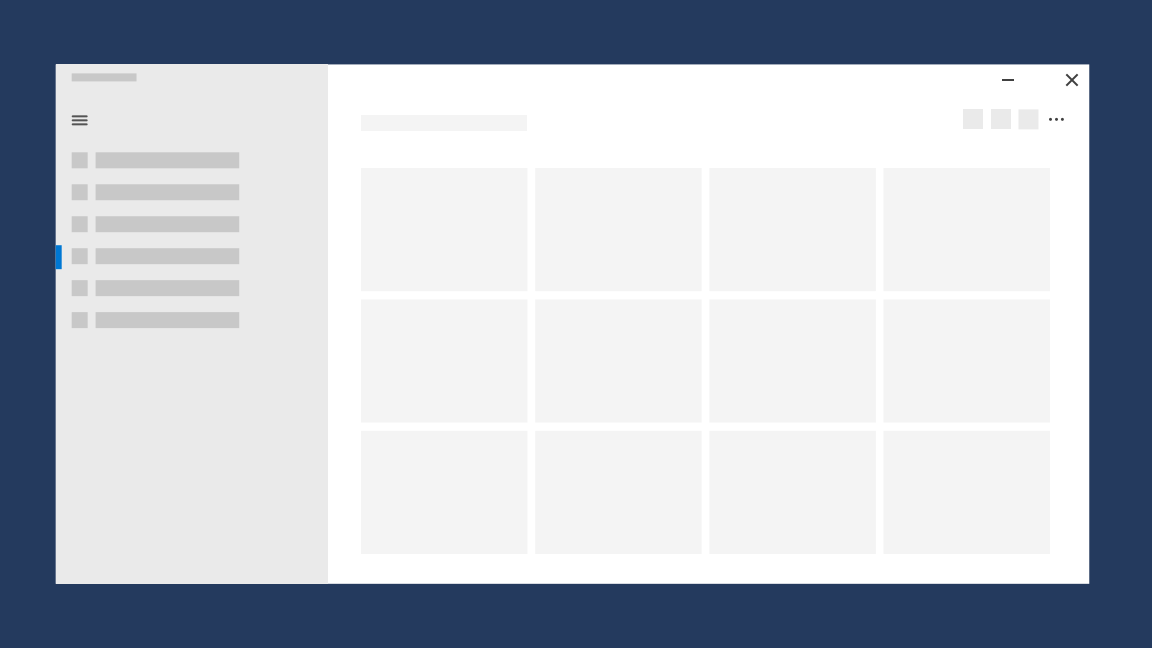
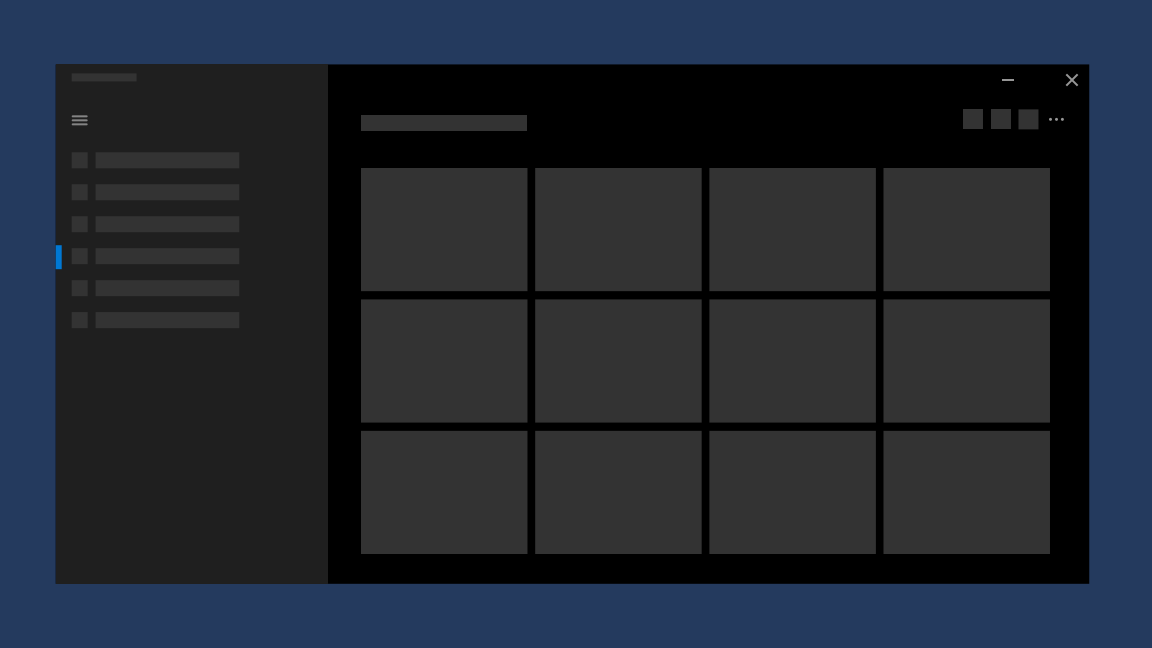
它默认为设备亮度。(MediaQuery.of(context).brightness)
ThemeData(
  brightness: Brightness.light, // or Brightness.dark
),
视觉密度
Density, in the context of a UI, is the vertical and horizontal “compactness” of the components in the UI. It is unitless, since it means different things to different UI components.
The default for visual densities is zero for both vertical and horizontal densities. It does not affect text sizes, icon sizes, or padding values.
For example, for buttons, it affects the spacing around the child of the button. For lists, it affects the distance between baselines of entries in the list. For chips, it only affects the vertical size, not the horizontal size.
ThemeData(
  visualDensity: VisualDensity.adaptivePlatformDensity,
),
以下 widget 会用到视觉密度
- 芯片
- PillButtonBar
- Snackbar
排版
To set a typography, you can use the ThemeData class combined with the Typography class
ThemeData(
  typography: Typography(
    caption: TextStyle(
      fontSize: 12,
      color: Colors.black,
      fontWeight: FontWeight.normal,
    ),
  ),
)
字体
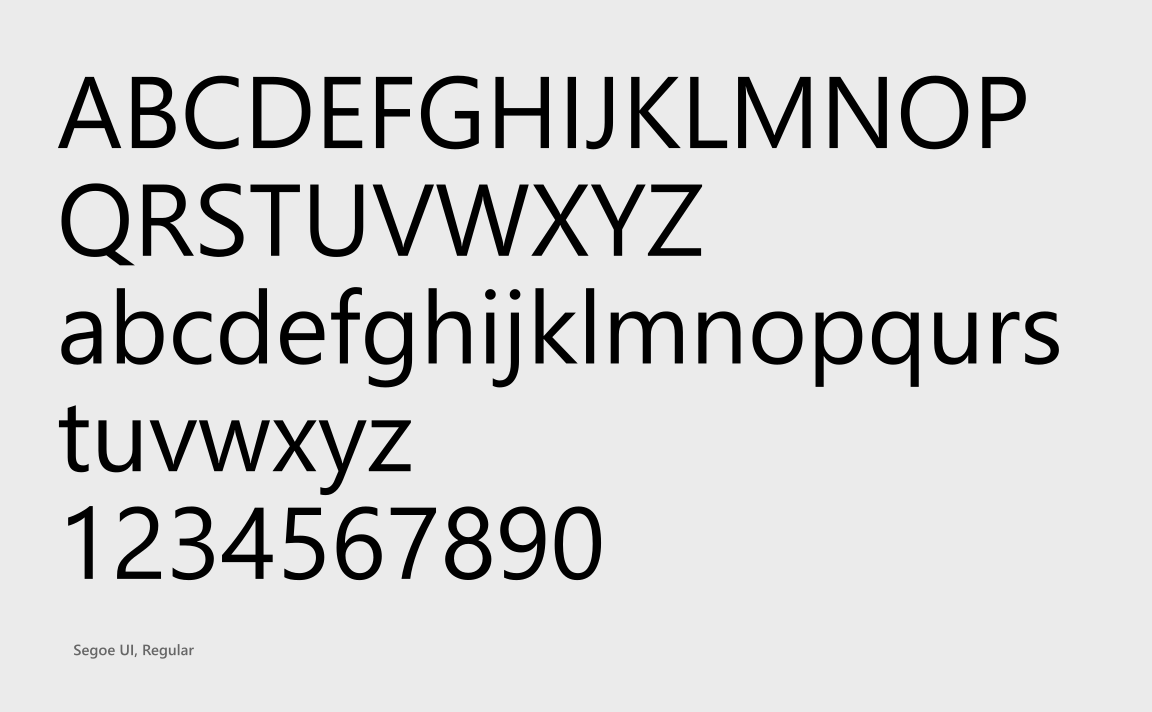
You should use one font throughout your app’s UI, and we recommend sticking with the default font for Windows apps, Segoe UI. It’s designed to maintain optimal legibility across sizes and pixel densities and offers a clean, light, and open aesthetic that complements the content of the system.
类型坡道
The Windows type ramp establishes crucial relationships between the type styles on a page, helping users read content easily. 了解更多

显示焦点
Reveal Focus is a lighting effect for 10-foot experiences, such as Xbox One and television screens. It animates the border of focusable elements, such as buttons, when the user moves gamepad or keyboard focus to them. It’s turned off by default, but it’s simple to enable. 了解更多
Reveal Focus calls attention to focused elements by adding an animated glow around the element’s border
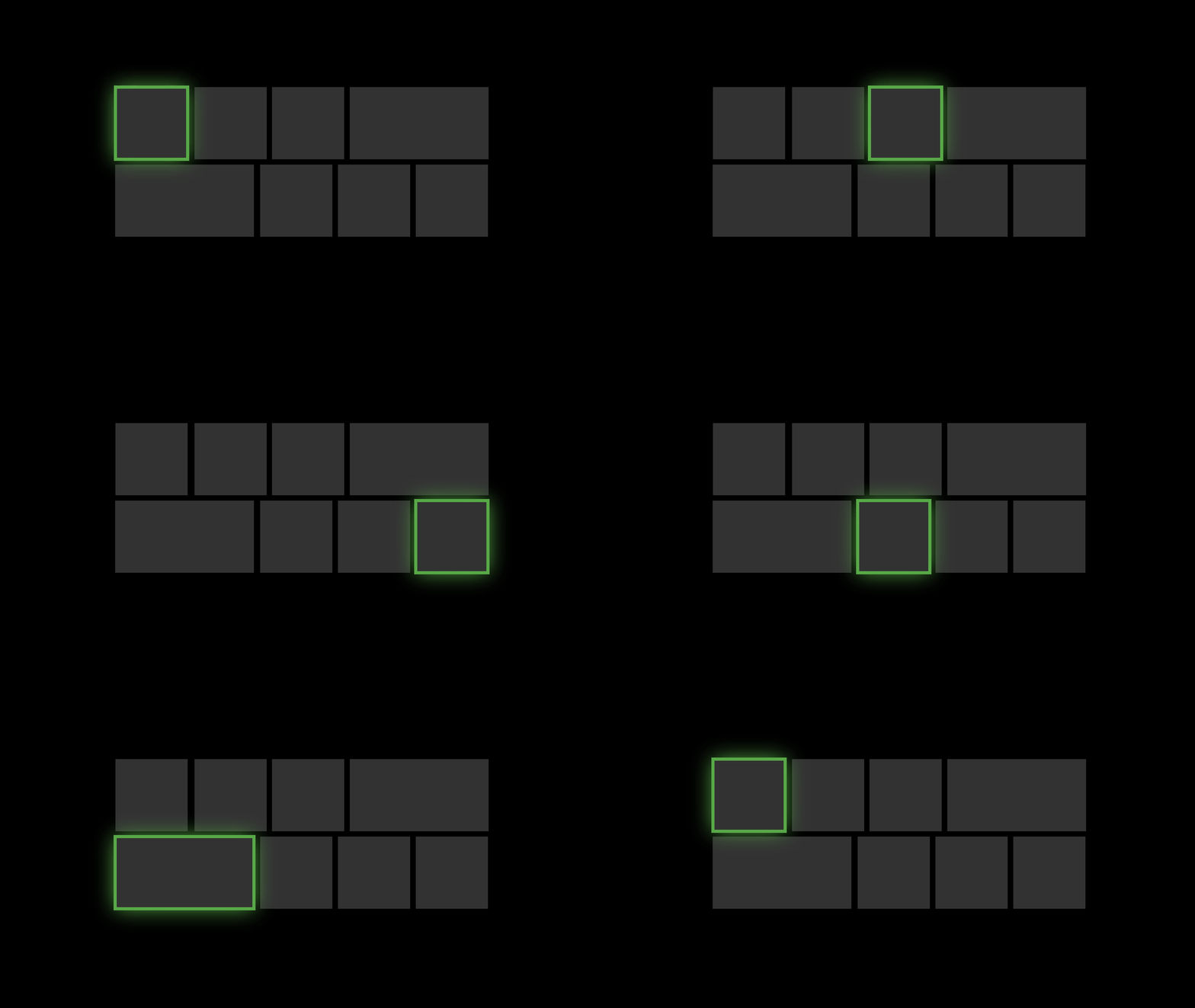
This is especially helpful in 10-foot scenarios where the user might not be paying full attention to the entire TV screen.
启用它
Reveal Focus is off by default. To enable it, change the focusStyle in your app ThemeData
theme: ThemeData(
  focusTheme: FocusStyle(
    glowFactor: 4.0,
  ),
),
To enable it in a 10 foot screen, use the method is10footScreen
import 'dart:ui' as ui;

theme: ThemeData(
  focusStyle: FocusStyle(
    glowFactor: is10footScreen(ui.window.physicalSize.width) ? 2.0 : 0.0,
  ),
),
Go to the example project to a full example
为什么默认不开启显示焦点?
As you can see, it’s fairly easy to turn on Reveal Focus when the app detects it’s running on 10 foot screen. So, why doesn’t the system just turn it on for you? Because Reveal Focus increases the size of the focus visual, which might cause issues with your UI layout. In some cases, you’ll want to customize the Reveal Focus effect to optimize it for your app.
自定义显示焦点
You can customize the focus border, border radius and glow color
focusTheme: FocusStyle(
  borderRadius: BorderRadius.zero,
  glowColor: theme.accentColor?.withOpacity(0.2),
  glowFactor: 0.0,
  border: BorderSide(
    width: 2.0,
    color: theme.inactiveColor ?? Colors.transparent,
  ),
),
To customize it to a single widget, wrap the widget in a FocusTheme widget, and change the options you want
FocusTheme(
  data: FocusThemeData(...),
  child: Button(
    text: Text('Custom Focus Button'),
    onPressed: () {},
  )
),
运动
This package widely uses animation in the widgets. The animation duration and curve can be defined on the app theme.
页面过渡
Page transitions navigate users between pages in an app, providing feedback as the relationship between pages. Page transitions help users understand if they are at the top of a navigation hierarchy, moving between sibling pages, or navigating deeper into the page hierarchy.
It’s recommended to widely use page transitions on NavigationView, that can be implemented using the widget NavigationBody.
This library gives you the following implementations to navigate between your pages
进入
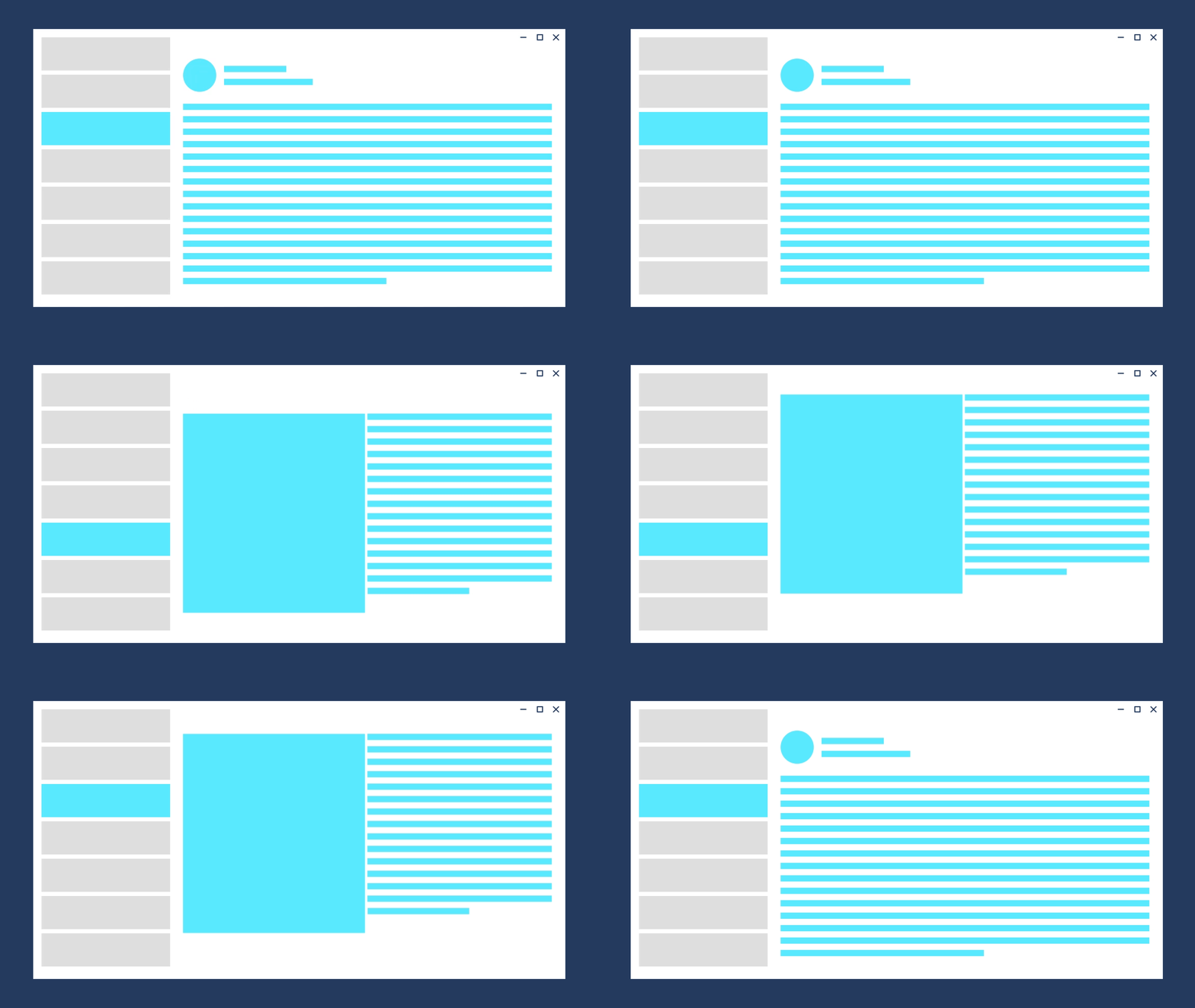
Entrance is a combination of a slide up animation and a fade in animation for the incoming content. Use entrance when the user is taken to the top of a navigational stack, such as navigating between tabs or left-nav items.
The desired feeling is that the user has started over.
Avaiable with the widget EntrancePageTransition, it produces the following effect
深入
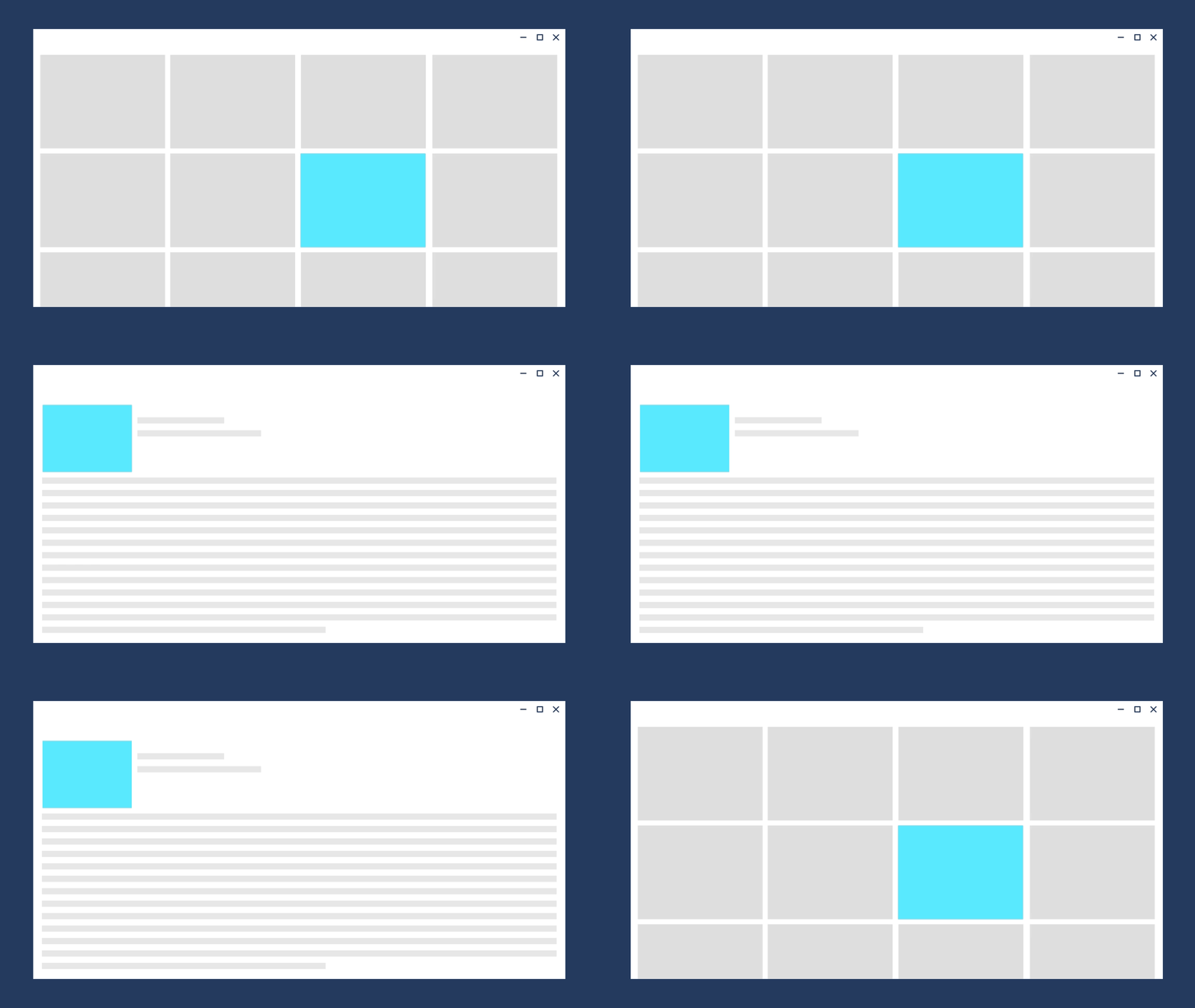
Use drill when users navigate deeper into an app, such as displaying more information after selecting an item.
The desired feeling is that the user has gone deeper into the app.
Avaiable with the widget DrillInPageTransition, it produces the following effect
水平
It’s avaiable with the widget HorizontalSlidePageTransition.
导航
The default Flutter Navigation is available on the FluentApp widget, that means you can simply call Navigator.push and Navigator.pop to navigate between routes. See navigate to a new screen and back
导航视图
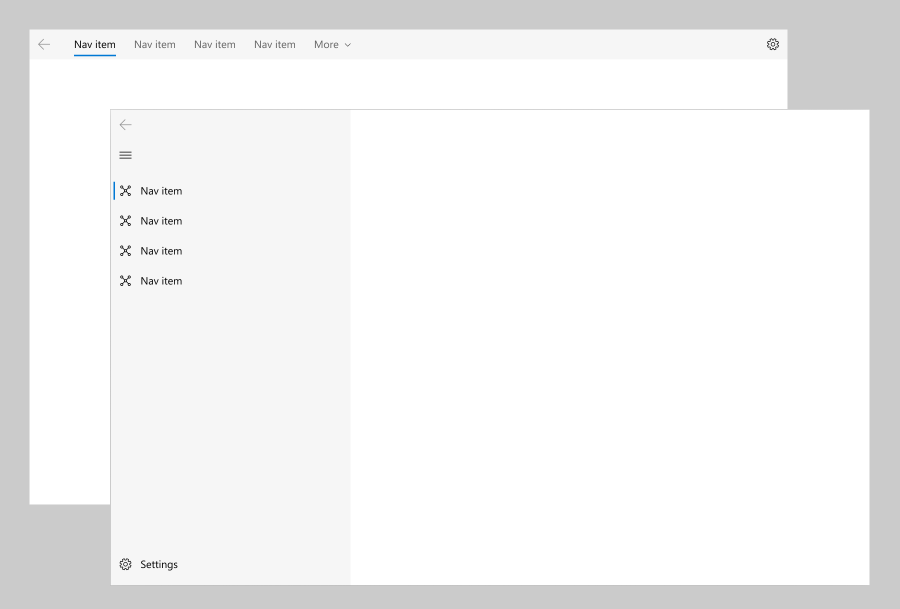
The NavigationView control provides top-level navigation for your app. It adapts to a variety of screen sizes and supports both top and left navigation styles.
应用栏
The app bar is the top app bar that every desktop nowadays have.
NavigationView(
  appBar: NavigationAppBar(
    title: Text('Nice App Title :)'),
    actions: Row(children: [
      /// These actions are usually the minimize, maximize and close window
    ]),
    /// If automaticallyImplyLeading is true, a 'back button' will be added to
    /// app bar. This property can be overritten by [leading]
    automaticallyImplyLeading: true,
  ),
  ...
)
导航窗格
The pane is the pane that can be displayed at the left or at the top.
NavigationView(
  ...,
  pane: NavigationPane(
    /// The current selected index
    selected: index,
    /// Called whenever the current index changes
    onChanged: (i) => setState(() => index = i),
    displayMode: PaneDisplayMode.auto,
  ),
  ...
)
You can change the displayMode to make it fit the screen.
| 名称 | 截图 | 信息 |
|---|---|---|
| 顶部 | 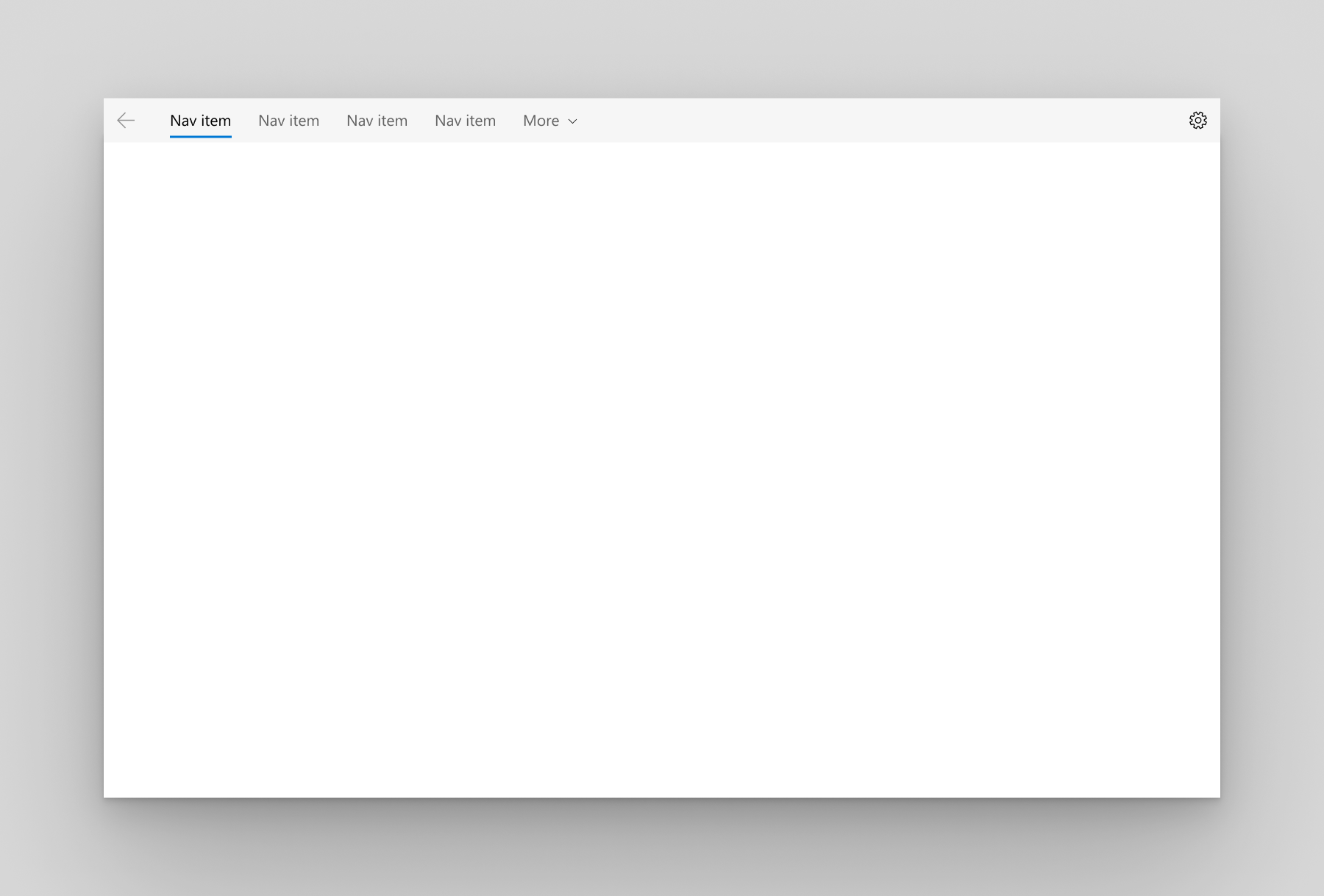 |
The pane is positioned above the content. We recommend top navigation when – You have 5 or fewer top-level navigation categories that are equally important, and any additional top-level navigation categories that end up in the dropdown overflow menu are considered less important. – You need to show all navigation options on screen. – You want more space for your app content. – Icons cannot clearly describe your app’s navigation categories. |
| 展开 | 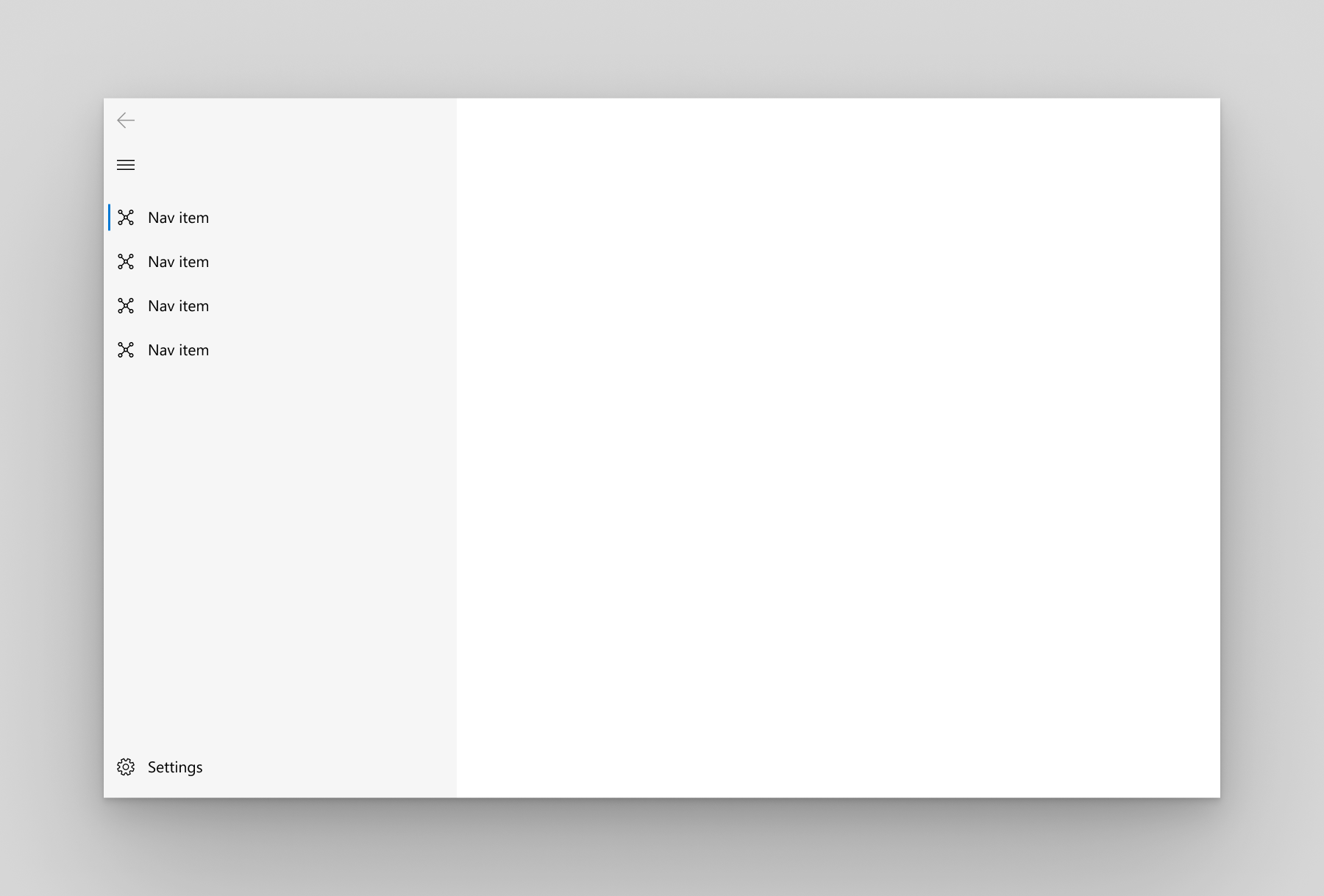 |
The pane is expanded and positioned to the left of the content. We recommend open navigation when – You have 5-10 equally important top-level navigation categories. – You want navigation categories to be very prominent, with less space for other app content. |
| 紧凑 | 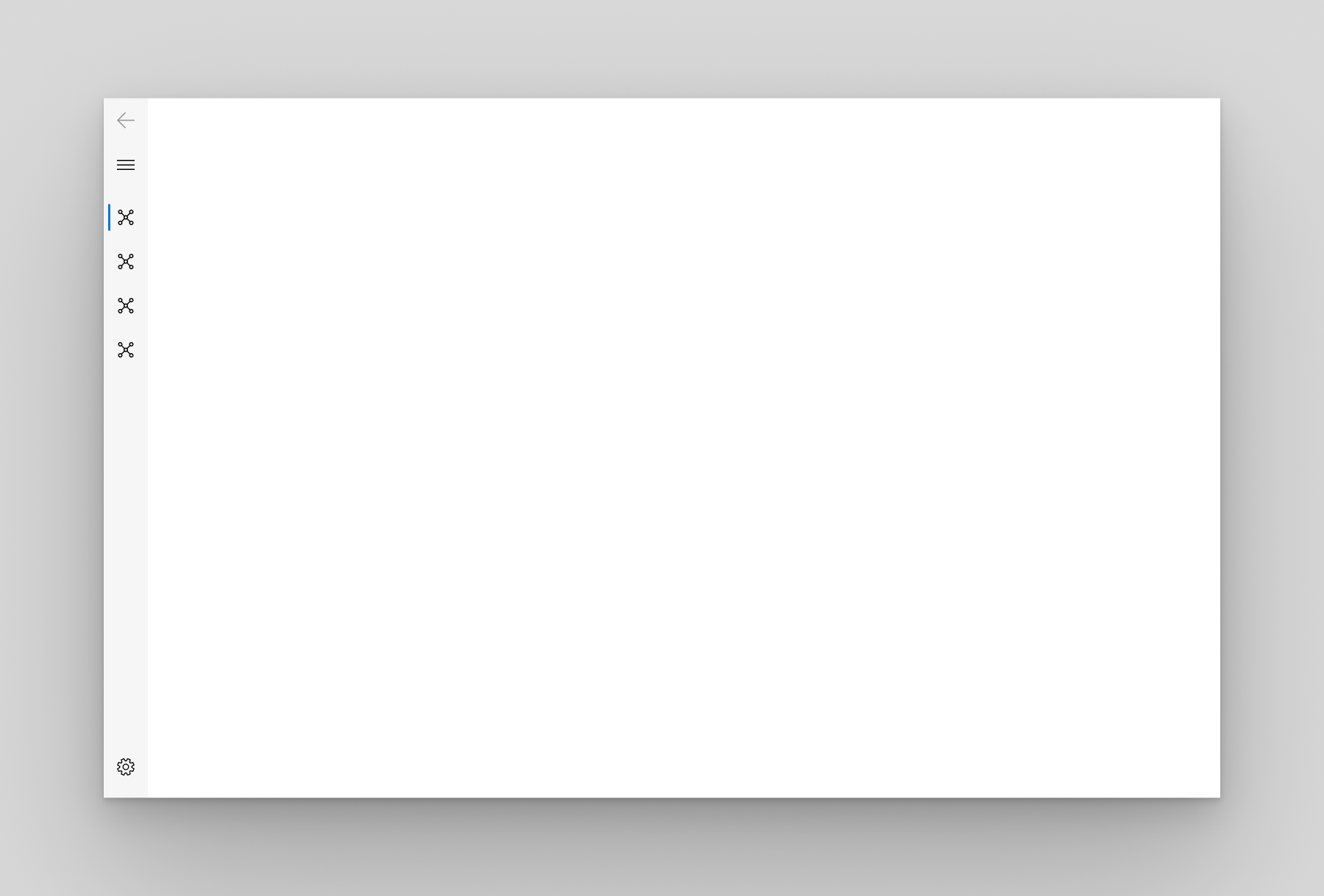 |
The pane shows only icons until opened and is positioned to the left of the content. |
| 极简 |  |
Only the menu button is shown until the pane is opened. When opened, it’s positioned to the left of the content. |
| 自动 | 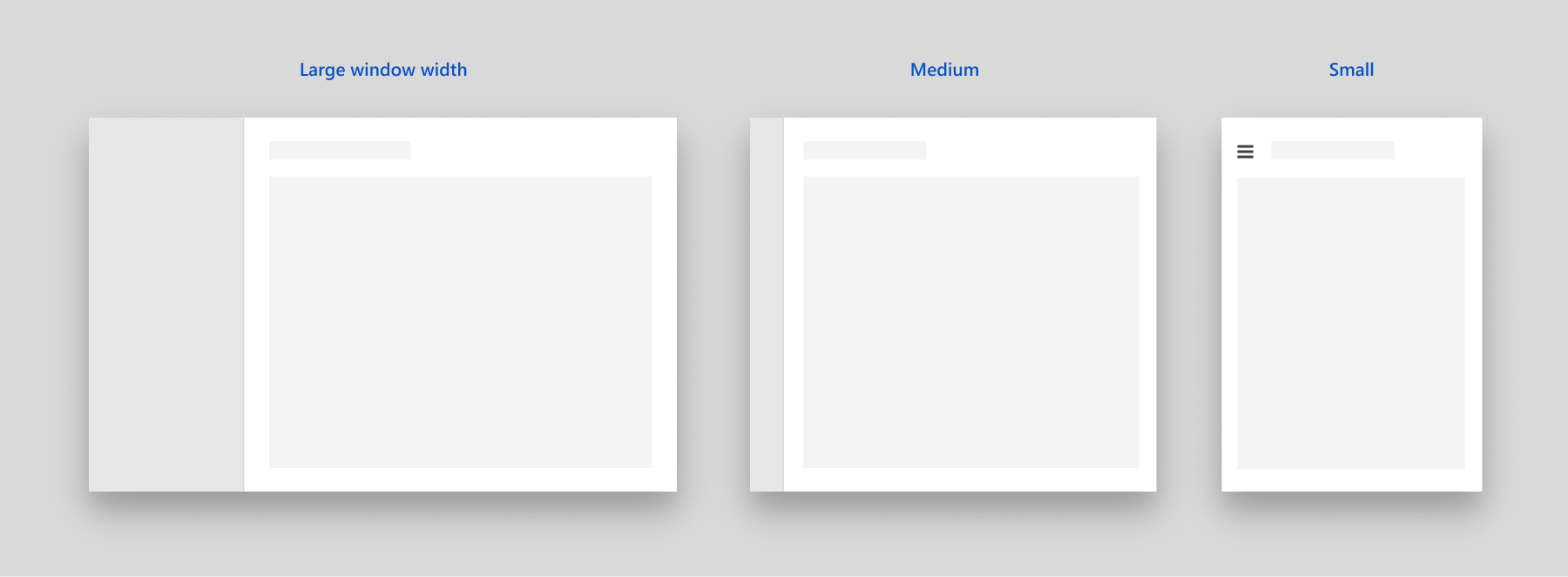 |
By default, displayMode is set to auto. In Auto mode, the NavigationView adapts between minimal when the window is narrow, to compact, and then open as the window gets wider. |
You can customize the selected indicator. By default StickyNavigationIndicator is used, but you can also use the old windows indicator
pane: NavigationPane(
  indicatorBuilder: ({
    required BuildContext context,
    /// The current selected index
    int? index,
    /// A function that, when executed, returns the position of all the
    /// PaneItems. This function must be called after the widget was
    /// rendered at least once
    required List<Offset> Function() offsets,
    /// A function that, when executed, returns the size of all the
    /// PaneItems. This function must be called after the widget was
    /// rendered at least once
    required List<Size> Function() sizes,
    /// Corresponds to the current display mode. If top, Axis.vertical
    /// is passed, otherwise Axis.vertical
    required Axis axis,
    /// Corresponds to the pane itself as a widget. The indicator is
    /// rendered over the whole pane.
    required Widget child,
  }) {
    if (index == null) return child;
    assert(debugCheckHasFluentTheme(context));
    final theme = NavigationPaneThemeData.of(context);
    return EndNavigationIndicator(
      index: index,
      offsets: offsets,
      sizes: sizes,
      child: child,
      color: theme.highlightColor,
      curve: theme.animationCurve ?? Curves.linear,
      axis: axis,
    );
  },
)
导航主体
A navigation body is used to implement page transitions into a navigation view. It knows what is the current display mode of the parent NavigationView, if any, and define the page transitions accordingly.
For top mode, the horizontal page transition is used. For the others, drill in page transition is used.
You can also supply a builder function to create the pages instead of a list of widgets. For this use the NavigationBody.builder constructor.
int _currentIndex = 0;

NavigationView(
  ...,
  content: NavigationBody(index: _currentIndex, children: [...]),
)
ScaffoldPage is usually used with the navigation body as its children
NavigationBody(
  index: _currentIndex,
  children: [
    ScaffoldPage(
      topBar: PageTopBar(header: Text('Your Songs'))
    )
  ],
)
标签页视图
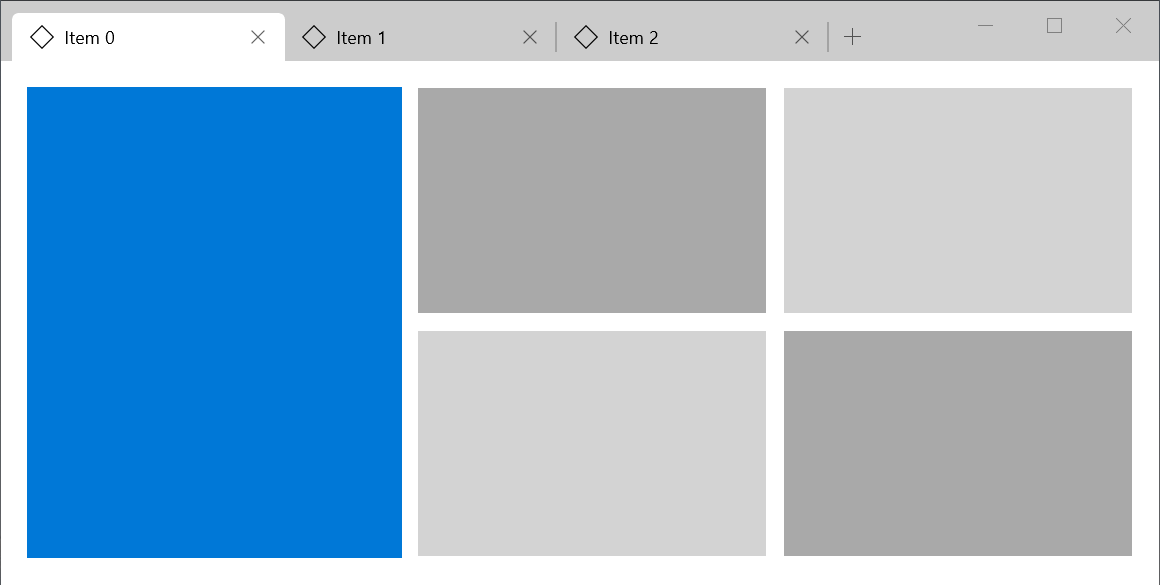
The TabView control is a way to display a set of tabs and their respective content. TabViews are useful for displaying several pages (or documents) of content while giving a user the capability to rearrange, open, or close new tabs. 了解更多
Here’s an example of how to create a tab view
SizedBox(
  height: 600,
  child: TabView(
    currentIndex: currentIndex,
    onChanged: (index) => setState(() => currentIndex = index),
    onNewPressed: () {
      setState(() => tabs++);
    },
    tabs: List.generate(tabs, (index) {
      return Tab(
        text: Text('Tab $index'),
        closeIcon: Tooltip(
          message: 'Close tab',
          child: IconButton(
            icon: Icon(FluentIcons.close),
            onPressed: () {
              setState(() => tabs--);
              if (currentIndex > tabs - 1) currentIndex--;
            },
          ),
        ),
      );
    }),
    bodies: List.generate(
      tabs,
      (index) => Container(
        color: index.isEven ? Colors.red : Colors.yellow,
      ),
    ),
  ),
),
The code above produces the following
底部导航
The bottom navigation displays icons and optional text at the bottom of the screen for switching between different primary destinations in an app. This is commomly used on small screens. 了解更多
Here’s an example of how to create a bottom navigation
int index = 0;

ScaffoldPage(
  content: NavigationBody(index: index, children: [
    Container(),
    Container(),
    Container(),
  ]),
  bottomBar: BottomNavigation(
    index: index,
    onChanged: (i) => setState(() => index = i),
    items: [
      BottomNavigationItem(
        icon: Icon(Icons.two_k),
        selectedIcon: Icon(Icons.two_k_plus),
        title: Text('Both'),
      ),
      BottomNavigationItem(
        icon: Icon(Icons.phone_android_outlined),
        selectedIcon: Icon(Icons.phone_android),
        title: Text('Android'),
      ),
      BottomNavigationItem(
        icon: Icon(Icons.phone_iphone_outlined),
        selectedIcon: Icon(Icons.phone_iphone),
        title: Text('iOS'),
      ),
    ],
  )
)
输入
Inputs are widgets that reacts to user interection. On most of the inputs you can set onPressed or onChanged to null to disable it.
按钮
A button gives the user a way to trigger an immediate action. 了解更多
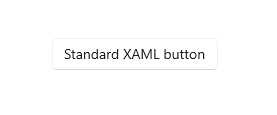
Here’s an example of how to create a basic button
Button(
  text: Text('Standard XAML button'),
  // Set onPressed to null to disable the button
  onPressed: () {
    print('button pressed'),
  }
)
The code above produces the following
You can also use some alternative buttons
图标按钮
This button is used to display an Icon as content. It’s optmized to show icons.
IconButton(
  icon: Icon(FluentIcons.add),
  onPressed: () {
    print('pressed icon button');
  },
),
分割按钮
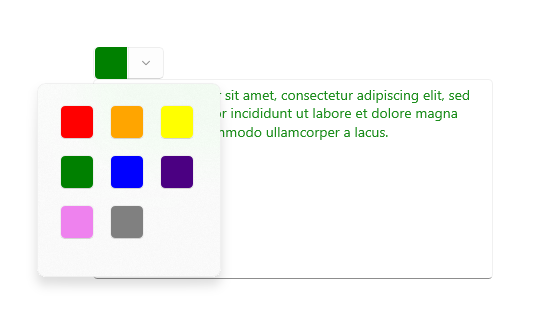
A Split Button has two parts that can be invoked separately. One part behaves like a standard button and invokes an immediate action. The other part invokes a flyout that contains additional options that the user can choose from. 了解更多
You can use a SplitButtonBar to create a Split Button. It takes two Buttons in the buttons property. You can also customize the button spacing by changing the property interval in its theme.
Here’s an example of how to create a split button
const double splitButtonHeight = 25.0;

SplitButtonBar(
  theme: SplitButtonThemeData(
    interval: 1, // the default value is one
  ),
  // There need to be at least 2 items in the buttons, and they must be non-null
  buttons: [
    SizedBox(
      height: splitButtonHeight,
      child: Button(
        text: Container(
          height: 24,
          width: 24,
          color: FluentTheme.of(context).accentColor,
        ),
        onPressed: () {},
      ),
    ),
    IconButton(
      icon: const SizedBox(
        height: splitButtonHeight,
        child: const Icon(FluentIcons.chevron_down, size: 10.0),
      ),
      onPressed: () {},
    ),
  ],
)
The code above produces the following button
切换按钮
A button that can be on or off.
Here’s an example of how to create a basic toggle button
bool _value = false;

ToggleButton(
  child: Text('Toggle Button'),
  checked: _value,
  onChanged: (value) => setState(() => _value = value),
)
复选框
A check box is used to select or deselect action items. It can be used for a single item or for a list of multiple items that a user can choose from. The control has three selection states: unselected, selected, and indeterminate. Use the indeterminate state when a collection of sub-choices have both unselected and selected states. 了解更多
Here’s an example of how to create a checkbox
bool _checked = true;

Checkbox(
  checked: _checked,
  onChanged: (value) => setState(() => _checked = value),
)
处理其状态
| 状态 | 属性 | Value |
|---|---|---|
| checked | checked | 真 |
| unchecked | checked | 假 |
| indeterminate | checked | 空 |
| enabled | onChanged | non-null |
| disabled | onChanged | 空 |
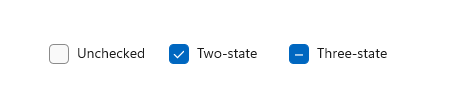
切换开关
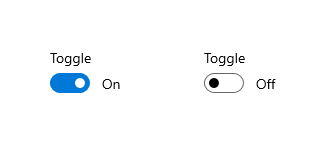
The toggle switch represents a physical switch that allows users to turn things on or off, like a light switch. Use toggle switch controls to present users with two mutually exclusive options (such as on/off), where choosing an option provides immediate results. 了解更多
Here’s an example of how to create a basic toggle switch
bool _checked = false;

ToggleSwitch(
  checked: _checked,
  onChanged: (v) => setState(() => _checked = v),
  content: Text(_checked ? 'On' : 'Off');
)
单选按钮
Radio buttons, also called option buttons, let users select one option from a collection of two or more mutually exclusive, but related, options. Radio buttons are always used in groups, and each option is represented by one radio button in the group.
In the default state, no radio button in a RadioButtons group is selected. That is, all radio buttons are cleared. However, once a user has selected a radio button, the user can’t deselect the button to restore the group to its initial cleared state.
The singular behavior of a RadioButtons group distinguishes it from check boxes, which support multi-selection and deselection, or clearing.
Here’s an example of how to create a basic set of radio buttons
int _currentIndex = -1;

final List<String> radioButtons = <String>[
  'RadioButton 1',
  'RadioButton 2',
  'RadioButton 3',
];

Column(
  children: List.generate(radioButtons.length, (index) {
    return RadioButton(
      checked: _currentIndex == index,
      // set onChanged to null to disable the button
      onChanged: () => setState(() => _currentIndex = index),
      content: Text(radioButtons[index]),
    );
  }),
),
The code above produces the following

滑块
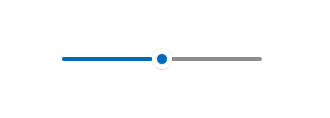
A slider is a control that lets the user select from a range of values by moving a thumb control along a track. 了解更多
A slider is a good choice when you know that users think of the value as a relative quantity, not a numeric value. For example, users think about setting their audio volume to low or medium—not about setting the value to 2 or 5.
Don’t use a slider for binary settings. Use a toggle switch instead.
Here’s an example of how to create a basic slider
double _value = 0;

SizedBox(
  // The default width is 200.
  // The slider does not have its own widget, so you have to add it yourself.
  // The slider always try to be as big as possible
  width: 200,
  child: Slider(
    max: 100,
    value: _value,
    onChanged: (v) => setState(() => value = v),
    // Label is the text displayed above the slider when the user is interacting with it.
    label: '${sliderValue.toInt()}',
  ),
)
The code above produces the following
选择垂直和水平滑块
You can set vertical to true to create a vertical slider
| 水平 | 垂直 |
|---|---|
| If the control is used to seek within media, like in a video app. | if the slider represents a real-world value that is normally shown vertically (such as temperature). |
评分条
The property
starSpacingwas not implemented yet
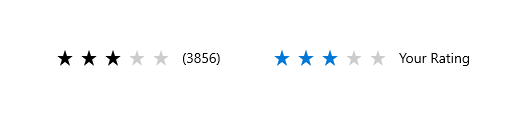
The rating control allows users to view and set ratings that reflect degrees of satisfaction with content and services. 了解更多
示例
double rating = 0.0;

RatingBar(
  rating: rating,
  onChanged: (v) => setState(() => rating = v),
)
You can set amount to change the amount of stars. The rating must be less than the stars and more than 0. You can also change the icon, its size and color. You can make the bar read only by setting onChanged to null.
表单
A form is a group of controls that collect and submit data from users. Forms are typically used for settings pages, surveys, creating accounts, and much more.
文本框
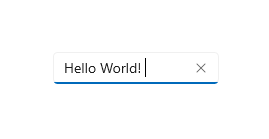
A Text Box lets a user type text into an app. It’s typically used to capture a single line of text, but can be configured to capture multiple lines of text. The text displays on the screen in a simple, uniform, plaintext format. 了解更多
You can use the Forms screen in the example app for reference.
You can use the widget TextBox to create text boxes
TextBox(
  controller: ...,
  header: 'Notes',
  placeholder: 'Type your notes here',
),
Which produces the following

自动建议框
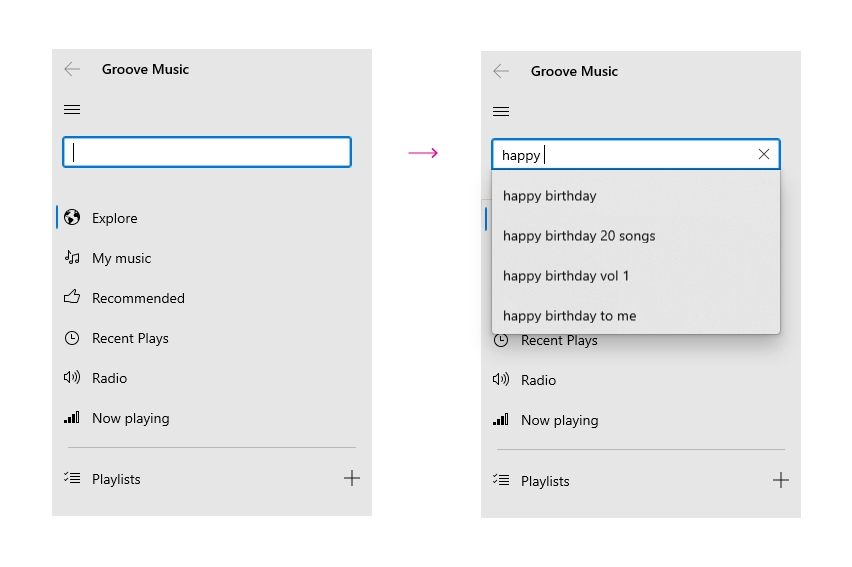
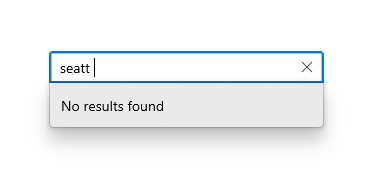
Use an AutoSuggestBox to provide a list of suggestions for a user to select from as they type. 了解更多
示例
final autoSuggestBox = TextEditingController();

AutoSuggestBox<String>(
  controller: autoSuggestBox,
  items: [
    'Blue',
    'Green',
    'Red',
    'Yellow',
    'Grey',
  ],
  onSelected: (text) {
    print(text);
  },
  textBoxBuilder: (context, controller, focusNode, key) {
    const BorderSide _kDefaultRoundedBorderSide = BorderSide(
      style: BorderStyle.solid,
      width: 0.8,
    );
    return TextBox(
      key: key,
      controller: controller,
      focusNode: focusNode,
      suffixMode: OverlayVisibilityMode.editing,
      suffix: IconButton(
        icon: Icon(FluentIcons.close),
        onPressed: () {
          controller.clear();
          focusNode.unfocus();
        },
      ),
      placeholder: 'Type a color',
      decoration: BoxDecoration(
        border: Border(
          top: _kDefaultRoundedBorderSide,
          bottom: _kDefaultRoundedBorderSide,
          left: _kDefaultRoundedBorderSide,
          right: _kDefaultRoundedBorderSide,
        ),
        borderRadius: focusNode.hasFocus
            ? BorderRadius.vertical(top: Radius.circular(3.0))
            : BorderRadius.all(Radius.circular(3.0)),
      ),
    );
  },
)
The code above produces the following
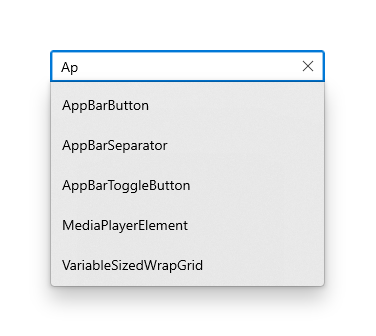
截图
组合框
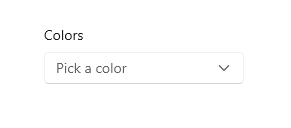
Use a combo box (also known as a drop-down list) to present a list of items that a user can select from. A combo box starts in a compact state and expands to show a list of selectable items. A ListBox is similar to a combo box, but is not collapsible/does not have a compact state. 了解更多
Here’s an example of how to create a basic combo box
final values = ['Blue', 'Green', 'Yellow', 'Red'];
String? comboBoxValue;

SizedBox(
  width: 200,
  child: Combobox<String>(
    header: 'Colors',
    placeholder: 'Selected list item',
    isExpanded: true,
    items: values
        .map((e) => ComboboxItem<String>(
              value: e,
              child: Text(e),
            ))
        .toList(),
    value: comboBoxValue,
    onChanged: (value) {
      // print(value);
      if (value != null) setState(() => comboBoxValue = value);
    },
  ),
),
The code above produces the following
小部件
工具提示
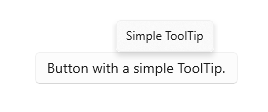
A tooltip is a short description that is linked to another control or object. Tooltips help users understand unfamiliar objects that aren’t described directly in the UI. They display automatically when the user moves focus to, presses and holds, or hovers the mouse pointer over a control. The tooltip disappears after a few seconds, or when the user moves the finger, pointer or keyboard/gamepad focus. 了解更多
To add a tooltip to a widget, wrap it in a Tooltip widget
Tooltip(
  message: 'Click to perform an action',
  child: Button(
    text: Text('Button with tooltip'),
    onPressed: () {
      print('pressed button with tooltip');
    }
  ),
)
It’s located above or below the child widget. You can specify the preffered location when both locations are available using the preferBelow property.
内容对话框
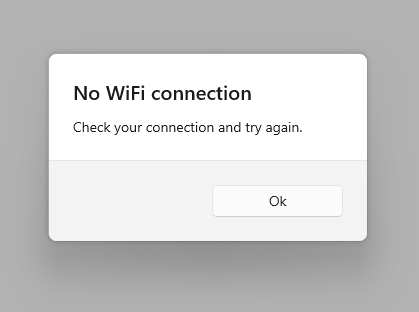
Dialogs are modal UI overlays that provide contextual app information. They block interactions with the app window until being explicitly dismissed. They often request some kind of action from the user. 了解更多
You can create a Dialog with the widget ContentDialog
ContentDialog(
  title: Text('No WiFi connection'),
  content: Text('Check your connection and try again'),
  actions: [
    Button(
      text: Text('Ok'),
      onPressed: () {
        Navigator.pop(context);
      }
    )
  ],
),
The code above produces the following
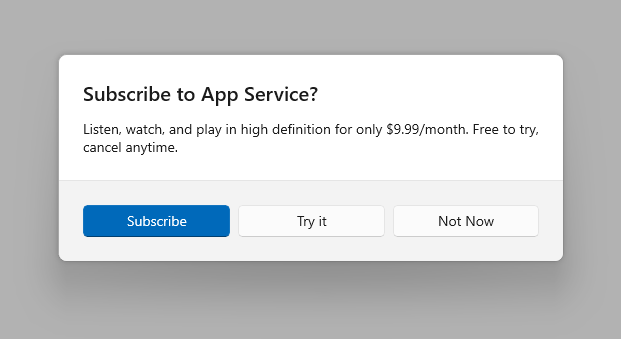
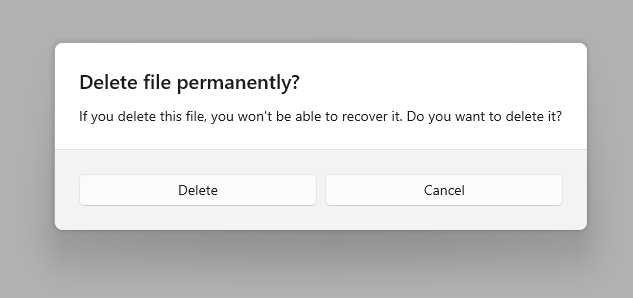
You can display the dialog as an overlay by calling the function showDialog
showDialog(
  context: context,
  builder: (context) {
    return ContentDialog(...);
  },
);
弹出菜单
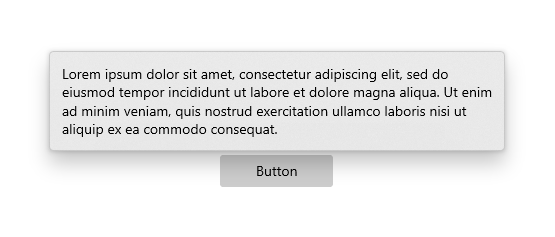
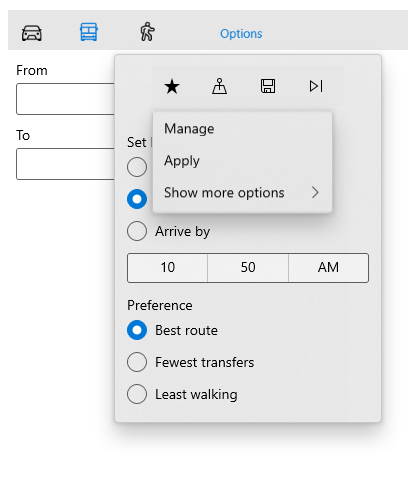
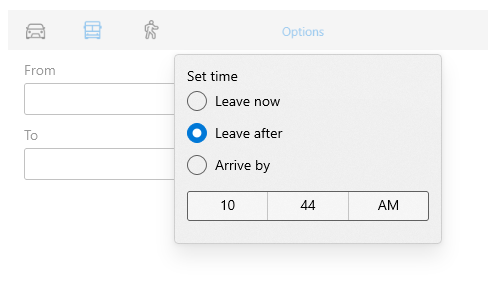
A flyout is a light dismiss container that can show arbitrary UI as its content. Flyouts can contain other flyouts or context menus to create a nested experience.
示例
final flyoutController = FlyoutController();

Flyout(
  controller: flyoutController,
  contentWidth: 450,
  content: FlyoutContent(
    child: Text(
        'Lorem ipsum dolor sit amet, consectetur adipiscing elit, sed do eiusmod tempor incididunt ut labore et dolore magna aliqua. Ut enim ad minim veniam, quis nostrud exercitation ullamco laboris nisi ut aliquip ex ea commodo consequat.'),
  ),
  child: Button(
    text: Text('Open flyout'),
    onPressed: () {
      flyoutController.open = true;
    },
  ),
);

@override
void dispose() {
  flyoutController.dispose();
  super.dispose();
}
The code above produces the following
截图
亚克力
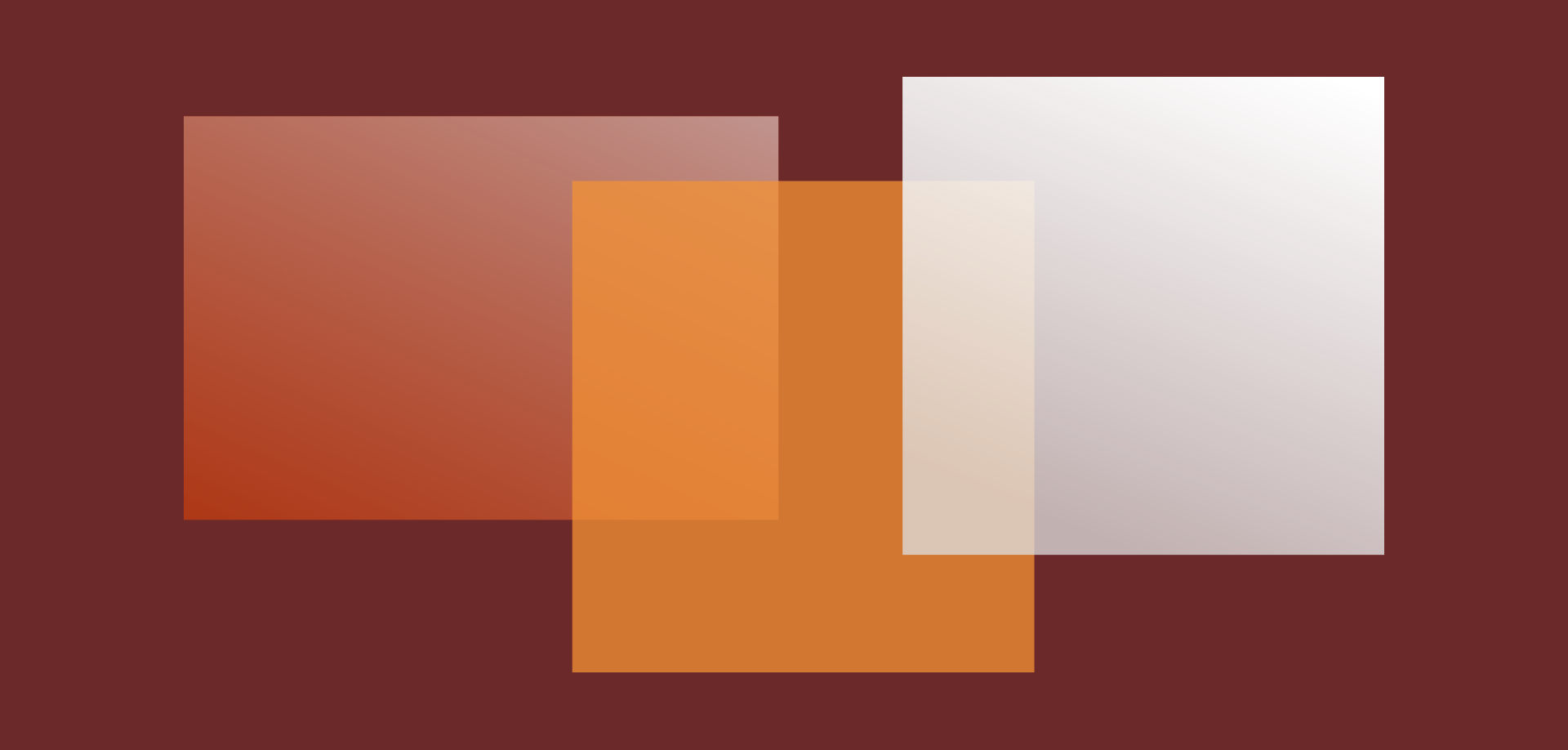
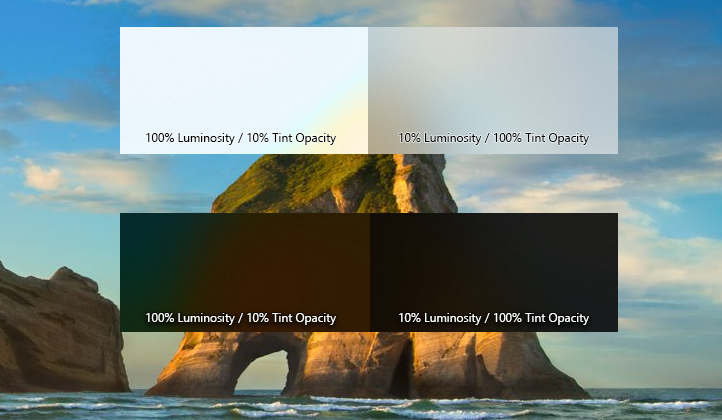
Acrylic is a type of Brush that creates a translucent texture. You can apply acrylic to app surfaces to add depth and help establish a visual hierarchy. 了解更多
| 做 | 不做 |
|---|---|
| Do use acrylic as the background material of non-primary app surfaces like navigation panes. | Don’t put desktop acrylic on large background surfaces of your app – this breaks the mental model of acrylic being used primarily for transient surfaces. |
| Do extend acrylic to at least one edge of your app to provide a seamless experience by subtly blending with the app’s surroundings. | Don’t place in-app and background acrylics directly adjacent to avoid visual tension at the seams. |
| Don’t place multiple acrylic panes with the same tint and opacity next to each other because this results in an undesirable visible seam. | |
| Don’t place accent-colored text over acrylic surfaces. |
Acrylic(
  child: Button(
    text: Text('Mom it\'s me hehe <3'),
    onPressed: () {
      print('button inside acrylic pressed');
    }
  ),
  color: ...,
  width: ...,
  height: ...,
),
信息栏
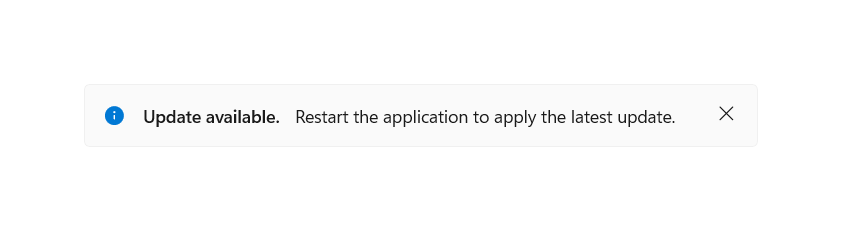
The InfoBar control is for displaying app-wide status messages to users that are highly visible yet non-intrusive. There are built-in Severity levels to easily indicate the type of message shown as well as the option to include your own call to action or hyperlink button. Since the InfoBar is inline with other UI content the option is there for the control to always be visible or dismissed by the user.
You can easility create it using the InfoBar widget and theme it using InfoBarThemeData. It has built-in support for both light and dark theme
bool _visible = true;

if (_visible)
  InfoBar(
    title: Text('Update available'),
    content: Text('Restart the app to apply the latest update.'), // optional
    severity: InfoBarSeverity.info, // optional. Default to InfoBarSeverity.info
    onClose: () {
      // Dismiss the info bar
      setState(() => _visible = false);
    }
  ),
Which produces the following
日期选择器
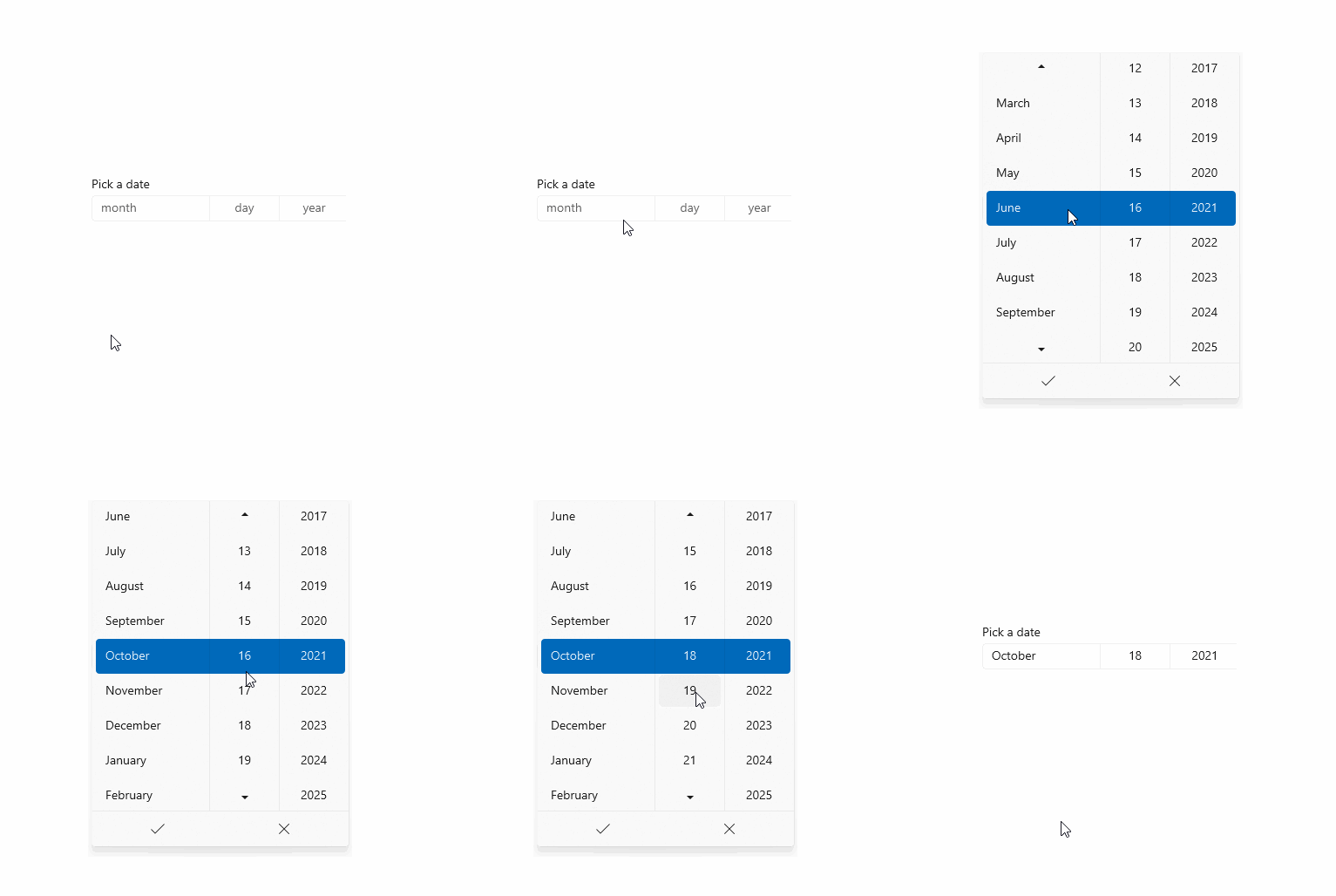
The date picker gives you a standardized way to let users pick a localized date value using touch, mouse, or keyboard input. 了解更多
The entry point displays the chosen date, and when the user selects the entry point, a picker surface expands vertically from the middle for the user to make a selection. The date picker overlays other UI; it doesn’t push other UI out of the way.
We use intl to format the dates. You can change the current locale to change formatting
Here’s an example of how to create a basic date picker
DateTime date = DateTime.now();

SizedBox(
  width: 295,
  child: DatePicker(
    header: 'Date of birth',
    selected: date,
    onChanged: (v) => setState(() => date = v),
  ),
);
Which produces the following
时间选择器
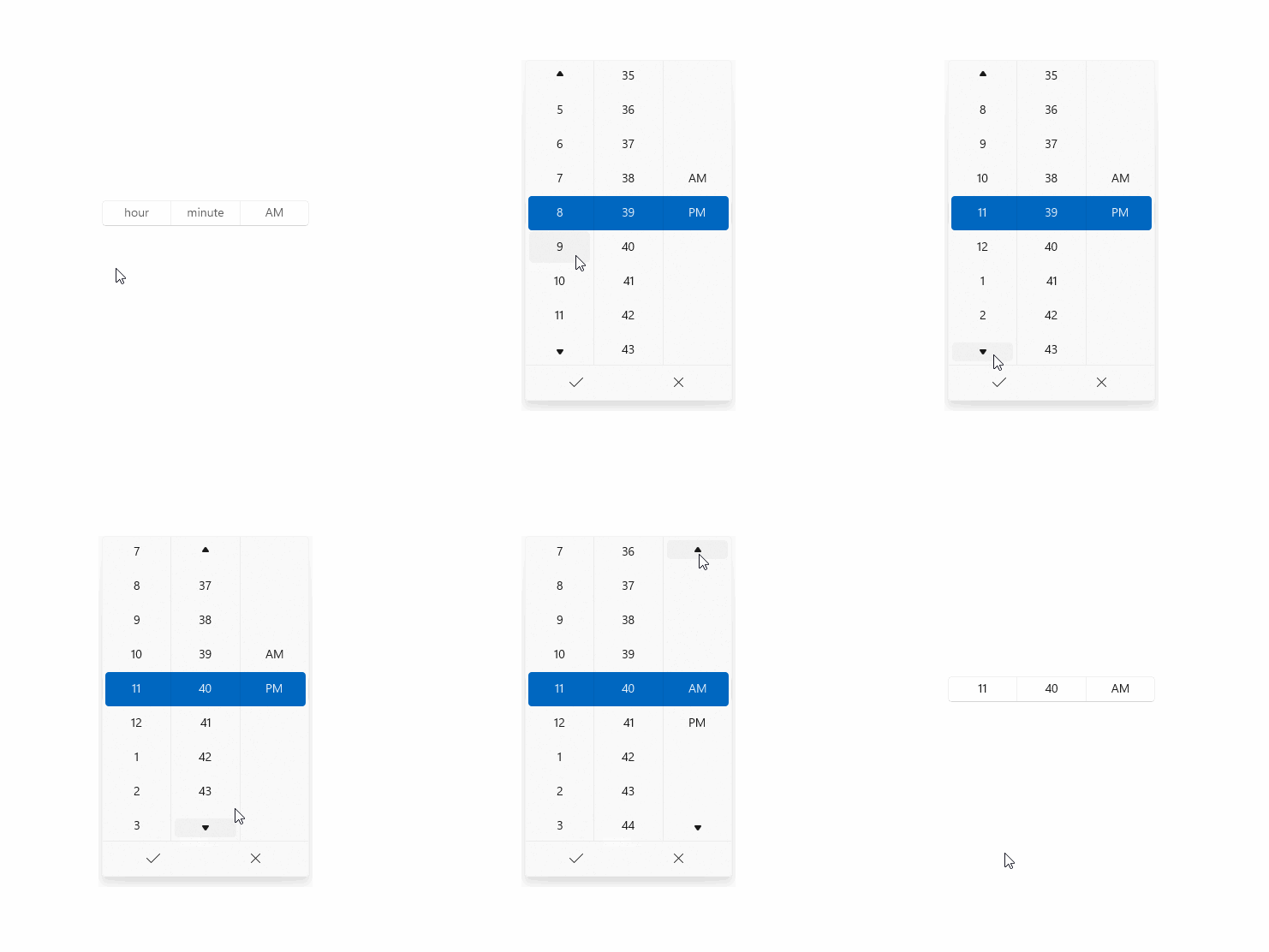
The time picker gives you a standardized way to let users pick a time value using touch, mouse, or keyboard input. 了解更多
Use a time picker to let a user pick a single time value.
Here’s an example of how to create a basic time picker
DateTime date = DateTime.now();

SizedBox(
  width: 240,
  child: TimePicker(
    header: 'Arrival time',
    selected: date,
    onChanged: (v) => setState(() => date = v),
  ),
),
The code above produces the following
进度条和进度环
A progress control provides feedback to the user that a long-running operation is underway. It can mean that the user cannot interact with the app when the progress indicator is visible, and can also indicate how long the wait time might be, depending on the indicator used.
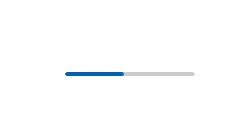
Here’s an example of how to create a ProgressBar
ProgressBar(value: 35)
You can omit the value property to create an indeterminate progress bar
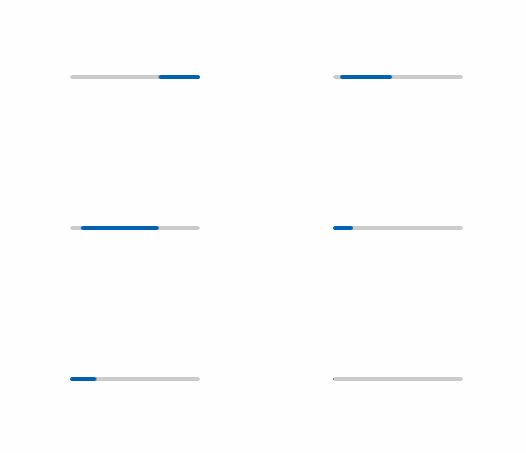
Indeterminate Progress Bar is a courtesy of @raitonubero. Show him some love
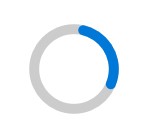
Here’s an example of how to create a progress ring
ProgressRing(value: 35)
You can omit the value property to create an indeterminate progress ring
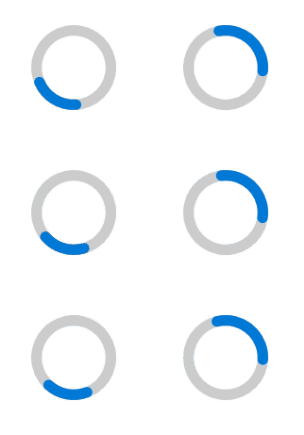
Both Indeterminate ProgressBar and Indeterminate ProgressRing is a courtesy of @raitonubero. Show him some love ❤
滚动条
A scrollbar thumb indicates which portion of a [ScrollView] is actually visible. 了解更多
Depending on the situation, the scrollbar uses two different visualizations, shown in the following illustration: the panning indicator (left) and the traditional scrollbar (right).
Note that the arrows aren’t visible. See this and this issues for more info.


When the scrollbar is visible it is overlaid as 16px on top of the content inside your ScrollView. In order to ensure good UX design you will want to ensure that no interactive content is obscured by this overlay. Additionally if you would prefer not to have UX overlap, leave 16px of padding on the edge of the viewport to allow for the scrollbar.
Here’s an example of how to add a scrollbar to a ScrollView
final _controller = ScrollController();

Scrollbar(
  controller: controller,
  child: ListView.builder(
    /// You can add a padding to the view to avoid having the scrollbar over the UI elements
    padding: EdgeInsets.only(right: 16.0),
    itemCount: 100,
    builder: (context, index) {
      return ListTile(title: Text('$index'));
    }
  ),
)
Which produces the following

You can change the isAlwaysVisible property to either enable or disable the fade effect. It’s disabled by default.
列表项
You can use a ListTile in a ListView.
示例
final people = {
  'Mass in B minor': 'Johann Sebastian Bach',
  'Third Symphony': 'Ludwig van Beethoven',
  'Serse': 'George Frideric Hendel',
};

ListView.builder(
  itemCount: people.length,
  itemBuilder: (context, index) {
    final title = people.keys[index];
    final subtitle = people[title];
    return ListTile(
      leading: CircleAvatar(),
      title: Text(title),
      subtitle: Text(subtitle),
    );
  }
),
The code above produces the following
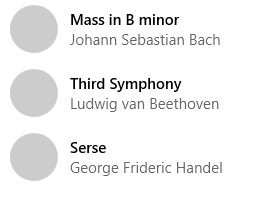
If you want to create a tappable tile, use TappableListTile instead.
信息标题
You can use an InfoHeader to tell the user the purpose of something
Here’s an example of how to add an info header to a combobox
InfoHeader(
  header: 'Control header',
  child: ComboBox(...),
),
The code above produces the following
Some widgets, such as ComboBox and TextBox, already come with a header property, so you can use them easily with them
ComboBox(
  header: 'Control header',
  ...
)
This will produce the same as the image above.
移动端小部件
Widgets with focus on mobile. Based on the official documentation and source code for iOS and Android. Most of the widgets above can adapt to small screens, and will fit on all your devices.
底部工作表
Bottom Sheet is used to display a modal list of menu items. They slide up over the main app content as a result of a user triggered action. 了解更多
Here’s an example of how to display a bottom sheet
showBottomSheet(
  context: context,
  builder: (context) {
    return BottomSheet(
      // header: ...,
      description: Text('Description or Details here'),
      children: [
        ...,
        // Usually a `ListTile` or `TappableListTile`
      ],
    );
  },
),
To close it, just call Navigator.of(context).pop()
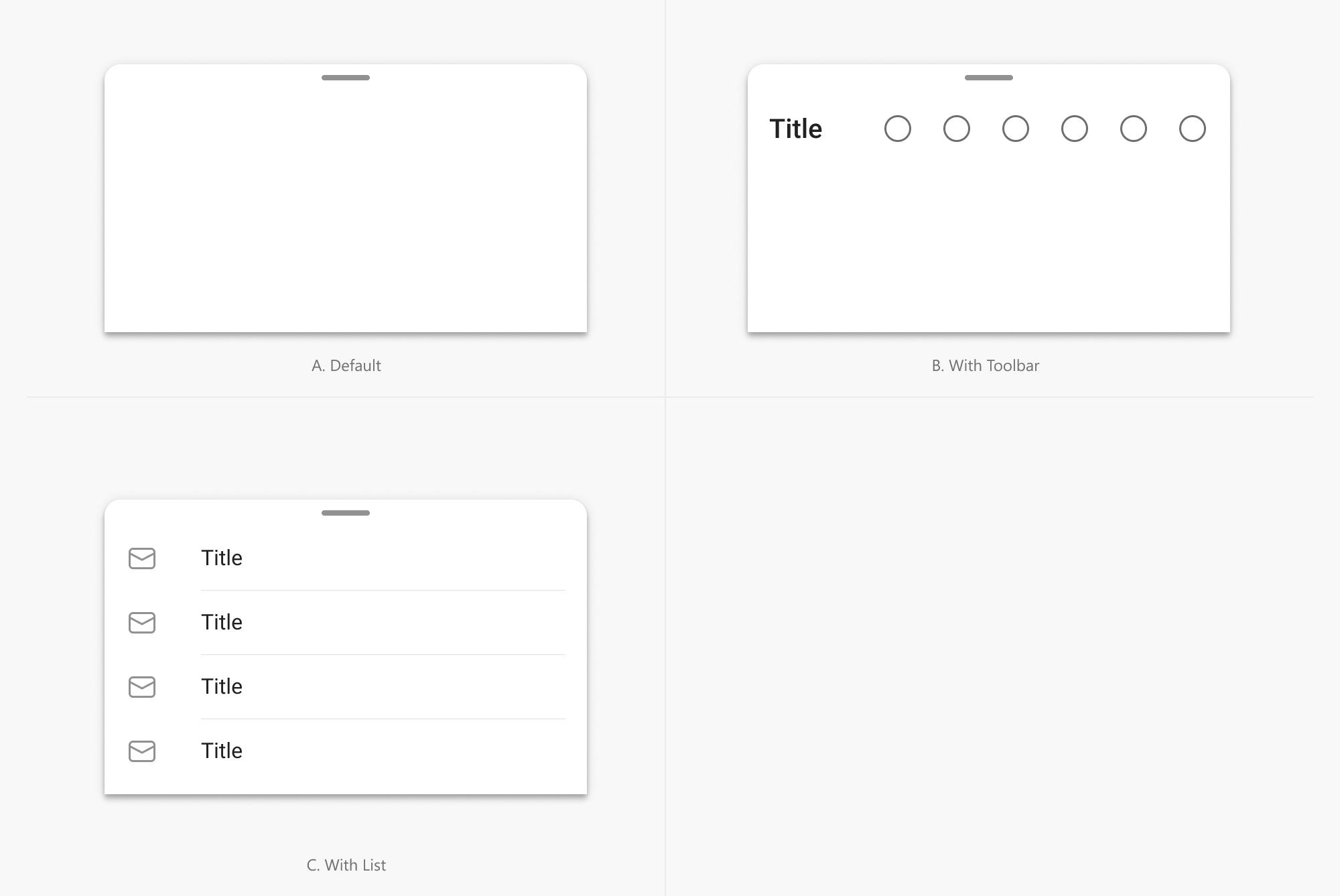
芯片
Chips are compact representations of entities (most commonly, people) that can be clicked, deleted, or dragged easily.
Here’s an example of how to create a chip
Chip(
  image: CircleAvatar(size: 12.0),
  text: Text('Chip'),
),
Chip.selected(
  image: FlutterLogo(size: 14.0),
  text: Text('Chip'),
)


药丸形按钮条
A Pill Button Bar is a horizontal scrollable list of pill-shaped text buttons in which only one button can be selected at a given time.
Here’s an example of how to create a pill button bar
int index = 0;

PillButtonBar(
  selected: index,
  onChanged: (i) => setState(() => index = i),
  items: [
    PillButtonBarItem(text: Text('All')),
    PillButtonBarItem(text: Text('Mail')),
    PillButtonBarItem(text: Text('Peopl')),
    PillButtonBarItem(text: Text('Events')),
  ]
)


Snackbar
Snackbars provide a brief message about an operation at the bottom of the screen. They can contain a custom action or view or use a style geared towards making special announcements to your users.
Here’s an example of how to display a snackbar at the bottom of the screen
showSnackbar(
  context,
  Snackbar(
    content: Text('A new update is available!'),
  ),
);
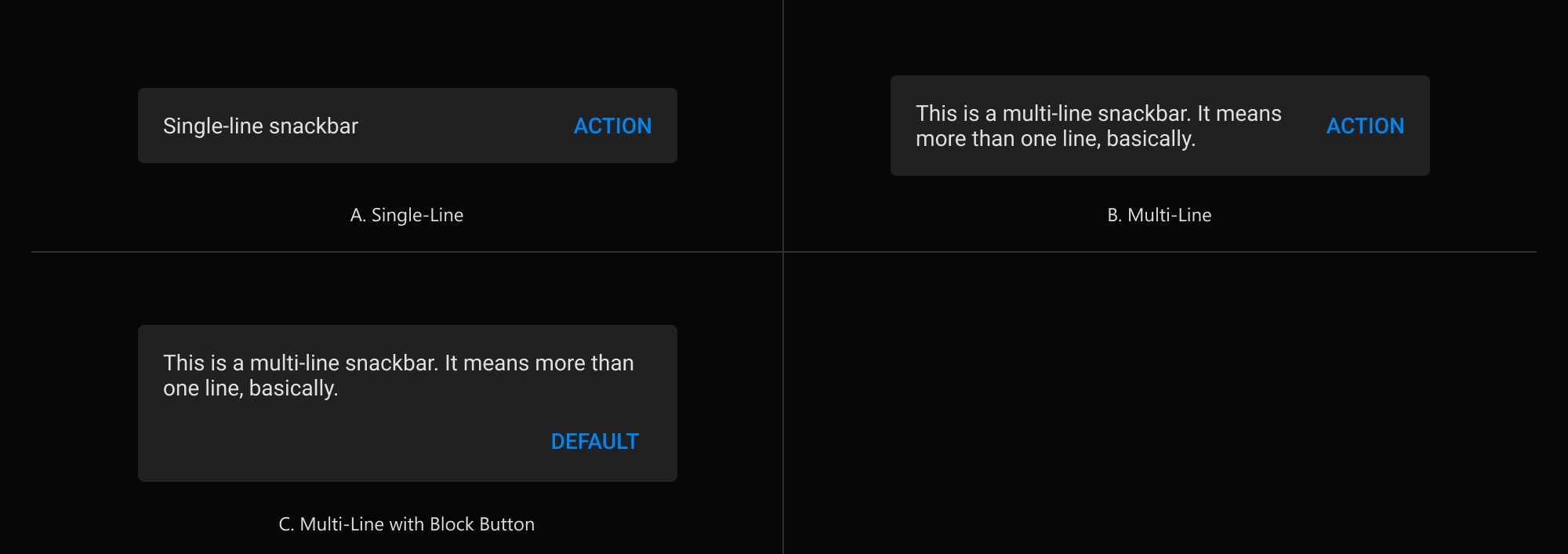
与 Material 库的对等项
The list of equivalents between this library and flutter/material.dart
| Material | Fluent |
|---|---|
| TextButton | 按钮 |
| IconButton | IconButton |
| Checkbox | Checkbox |
| RadioButton | RadioButton |
| – | RatingBar |
| – | SplitButton |
| – | ToggleButton |
| 开关 | ToggleSwitch |
| TextField | TextBox |
| DropdownButton | Combobox |
| – | AutoSuggestBox |
| AlertDialog | ContentDialog |
| MaterialBanner | InfoBar |
| Tooltip | Tooltip |
| – | Flyout |
| Drawer | NavigationPane |
| BottomNavigation | BottomNavigation |
| Divider | Divider |
| VerticalDivider | Divider |
| Material | Acrylic |
| ListTile | ListTile |
| CheckboxListTile | CheckboxListTile |
| SwitchListTile | SwitchListTile |
| LinearProgressIndicator | ProgressBar |
| CircularProgressIndicator | ProgressRing |
| _DatePickerDialog | DatePicker |
| _TimePickerDialog | TimePicker |
| 脚手架 | ScaffoldPage |
| AppBar | NavigationAppBar |
| Drawer | NavigationView |
| 芯片 | 芯片 |
| Snackbar | Snackbar |
| – | PillButtonBar |
贡献
Feel free to file an issue if you find a problem or make pull requests.
All contributions are welcome ?
致谢
Irrespective of order, thanks to all the people below for contributing with the project. It means a lot to me ?
- @HrX03 for the
Acrylic,FluentIconsgenerator and_FluentTextSelectionControlsimplementation. - @raitonubero for
StickyNavigationIndicator,ProgressBarandProgressRing - @alexmercerind for the flutter_acrylic plugin, used on the example app
- @bitsdojo for the bitsdojo_window plugin, used on the example app.


