
裁剪图片
一个图片裁剪小部件。它提供了经典移动和桌面图片裁剪器的常用用户体验,但由于它完全用 Dart 编写,因此不依赖任何移动包。因此,它可以在 Flutter 支持的所有平台上运行:移动、Web 和桌面。
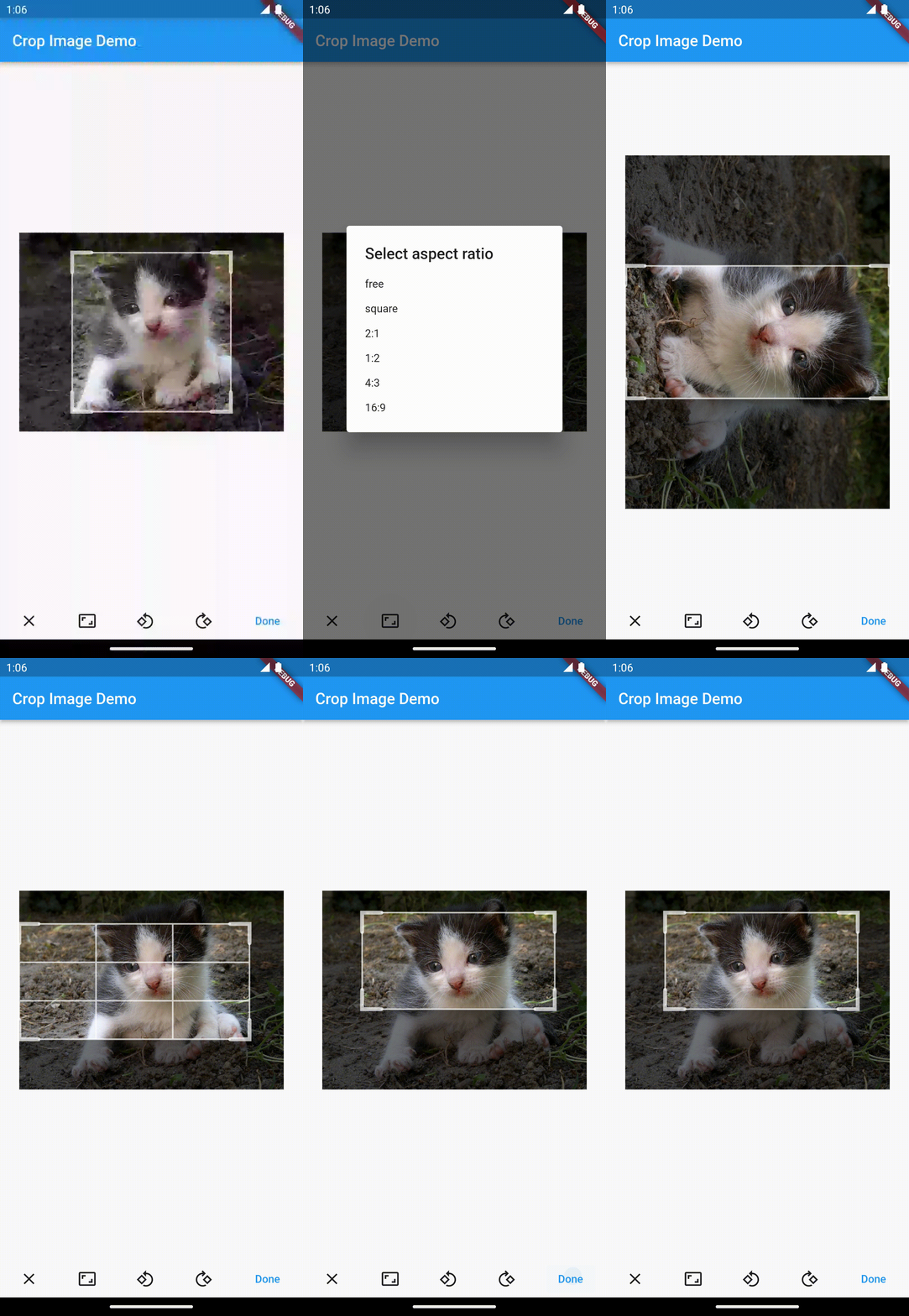
裁剪矩形的显示可以自定义。
final controller = CropController(
  /// If not specified, [aspectRatio] will not be enforced.
  aspectRatio: 1,
  /// Specify in percentages (1 means full width and height). Defaults to the full image.
  defaultCrop: Rect.fromLTRB(0.1, 0.1, 0.9, 0.9),
);

CropImage(
  /// Only needed if you expect to make use of its functionality like setting initial values of
  /// [aspectRatio] and [defaultCrop].
  controller: controller,
  /// The image to be cropped. Use [Image.file] or [Image.network] or any other [Image].
  image: Image.asset('...'),
  /// The crop grid color. Defaults to 70% white.
  final Color gridColor: Colors.white;
  /// The size of the corner of the crop grid. Defaults to 25.
  gridCornerSize: 50;
  /// The width of the crop grid thin lines. Defaults to 2.
  gridThinWidth: 3;
  /// The width of the crop grid thick lines. Defaults to 5.
  gridThickWidth: 6;
  /// The crop grid scrim (outside area overlay) color. Defaults to 54% black.
  scrimColor: Colors.gainsboro;
  /// True: Always show third lines of the crop grid.
  /// False: third lines are only displayed while the user manipulates the grid (default).
  alwaysShowThirdLines: true;
  /// Event called when the user changes the crop rectangle.
  /// The passed [Rect] is normalized between 0 and 1.
  onCrop: (rect) => print(rect);
  /// The minimum pixel size the crop rectangle can be shrunk to. Defaults to 100.
  minimumImageSize: 50;
);
设置
使用控制器是可选的,如果您不提供自己的控制器,小部件将创建一个并内部使用它。没有控制器,您可以处理 `onCrop` 事件并跟踪用户不断变化的裁剪选择。使用控制器时,您不需要使用 `onCrop`,可以随时读取裁剪值,也可以将其转换为像素而非百分比。
可以在控制器上提供 `aspectRatio` 和 `defaultCrop` 的初始值。
final controller = CropController(
  aspectRatio: 16.0 / 9.0,
  defaultCrop: Rect.fromLTRB(0.05, 0.05, 0.95, 0.95),
);
控制器还允许您以编程方式更改 `aspectRatio` 和 `crop` 矩形。
controller.aspectRatio = 16.0 / 9.0;
controller.crop = Rect.fromLTRB(0.05, 0.05, 0.95, 0.95);
请注意,如果指定了 `aspectRatio`,则所有裁剪矩形都将自动调整以适应所需的纵横比。
使用结果
用户决定的最终裁剪矩形可以以多种方式使用。小部件的基本输出是相对裁剪矩形,`Rect` 的所有四个值都归一化到 0 到 1 之间(1 表示完整宽度和高度),因此基本上是以百分比表示。控制器还有一个 `cropSize` 属性,可以将裁剪矩形映射到位图的实际像素。
Rect finalCropRelative = controller.crop;
Rect finalCropPixels = controller.cropSize;
该小部件不会直接裁剪原始位图,但其 `CropController` 提供了两个方便的函数,可在需要时执行此操作。
ui.Image bitmap = await controller.croppedBitmap();
Image image = await controller.croppedImage();
如果您想创建带有附加设置(例如不同的 `Image.fit`)的 `Image`,请自行复制 `croppedImage()` 的功能。您可以使用该包公开的 `UiImageProvider` 图像提供程序。
创建文件
如果您想将裁剪后的 `ui.Image` 保存到文件,此操作特定于此插件。使用 `ui.Image` 和 `File` 的现有函数。
data = await bitmap.toByteData(format: ImageByteFormat.png);
bytes = data!.buffer.asUint8List();
file.writeAsBytes(bytes, flush);
已知问题
在 Flutter Web 的 HTML Web 渲染器上,`croppedBitmap()`(以及因此的 `croppedImage()`)会产生异常。罪魁祸首是 `Picture.toImage()`,它与 HTML Web 渲染器不兼容(请参阅 flutter/engine#20750)。请考虑在 Web 上使用 CanvasKit 渲染器(无论如何,它比 HTML 好得多)。


