
drag_and_drop_gridview



Drag And Drop GridView 扩展了 Flutter 中 GridView 小部件的功能,让您可以通过简单的拖放来重新排列 GridView 的项目。它非常容易实现,并且使用起来很美观。
如果您欣赏此内容,请通过 ?| ⭐| ? 来支持项目的可见性!
用法
要使用此 包,请将 drag_and_drop_gridview 添加到您的 pubspec.yaml 文件中作为 依赖项。
dependencies:
  drag_and_drop_gridview: ^1.0.8
并在您的代码中导入该包。
import 'package:drag_and_drop_gridview/devdrag.dart';
示例


概述
DragAndDropGridView 具有 GridView.builder 构造函数 的所有相同参数(除了 shrinkWrap 和 scrollDirection)。
但在 DragAndDropGridView 中,有一些必需的参数:gridDelegate、itemBuilder、onWillAccept 和 onReorder。
gridDelegate
这与我们在 Flutter 的官方 GridView 中找到的相同。 了解更多
gridDelegate: SliverGridDelegateWithFixedCrossAxisCount(
        crossAxisCount: 2,
        childAspectRatio: 3 / 4.5,
     ),
itemBuilder
这与我们在 Flutter 的官方 GridView 中找到的相同。 了解更多
itemBuilder: (context, index) => Card(
       elevation: 2,
       child: Text(_animals[index]),
),
onWillAccept
此函数允许您验证是否要接受 gridViewItems 顺序的更改。如果您总是想接受更改,只需 return true。
// _animals = ['cat','dog','kitten','puppy']

onWillAccept: (oldIndex, newIndex) {
// Implement you own logic

// Example reject the reorder if the moving item's value is "kitten"
if (_animals[newIndex] == "cat"){
	return false;
}
return true, // If you want to accept the child return true or else return false
},
onReorder
此函数处理新排列的 gridItems 索引的更改。
onReorder: (oldIndex, newIndex) {
	    _temp = _animals[newIndex];
        _animals[newIndex] = _animals[oldIndex];
        _animals[oldIndex] = _temp;
        setState(() {});
},
示例
 _animals = ['cat','dog','kitten','puppy']

DragAndDropGridView(
    gridDelegate: SliverGridDelegateWithFixedCrossAxisCount(
        crossAxisCount: 2,
        childAspectRatio: 3 / 4.5,
    ),
    padding: EdgeInsets.all(20),
    itemBuilder: (context, index) => Card(
        elevation: 2,
        child: Text(_animals[index]),
		),
    ),
    itemCount: _animals.length,
    onWillAccept: (oldIndex, newIndex) {
		// Implement you own logic

		// Example reject the reorder if the moving item's destination value is cat"
		if (_animals[newIndex] == "cat"){
			return false;
		}
		return true, // If you want to accept the child return true or else return false
	},
    onReorder: (oldIndex, newIndex) {
	    _temp = _animals[newIndex];
        _animals[newIndex] = _animals[oldIndex];
        _animals[oldIndex] = _temp;
        setState(() {});
    },
)
示例 #1:DragAndDropGridView
以下示例向您展示了如何轻松实现 DragAndDropGridView。
import 'package:drag_and_drop_gridview/devdrag.dart';
import 'package:flutter/material.dart';
import 'package:flutter/rendering.dart';
import 'dart:async';

import 'package:flutter/services.dart';

void main() {
  runApp(MyApp());
}

class MyApp extends StatefulWidget {
  @override
  _MyAppState createState() => _MyAppState();
}

class _MyAppState extends State<MyApp> {
  List<String> _imageUris = [
    "https://images.pexels.com/photos/4466054/pexels-photo-4466054.jpeg?auto=compress&cs=tinysrgb&dpr=2&h=650&w=940",
    "https://images.pexels.com/photos/4561739/pexels-photo-4561739.jpeg?auto=compress&cs=tinysrgb&dpr=1&w=500",
    "https://images.pexels.com/photos/4507967/pexels-photo-4507967.jpeg?auto=compress&cs=tinysrgb&dpr=1&w=500",
    "https://images.pexels.com/photos/4321194/pexels-photo-4321194.jpeg?auto=compress&cs=tinysrgb&dpr=1&w=500",
    "https://images.pexels.com/photos/1053924/pexels-photo-1053924.jpeg?auto=compress&cs=tinysrgb&dpr=1&w=500",
    "https://images.pexels.com/photos/1624438/pexels-photo-1624438.jpeg?auto=compress&cs=tinysrgb&dpr=2&h=750&w=1260",
    "https://images.pexels.com/photos/1144687/pexels-photo-1144687.jpeg?auto=compress&cs=tinysrgb&dpr=2&h=750&w=1260",
    "https://images.pexels.com/photos/2589010/pexels-photo-2589010.jpeg?auto=compress&cs=tinysrgb&dpr=2&h=750&w=1260"
  ];

  int variableSet = 0;
  ScrollController _scrollController;
  double width;
  double height;

  @override
  void initState() {
    super.initState();
  }

  @override
  Widget build(BuildContext context) {
    return MaterialApp(
      home: Scaffold(
        appBar: AppBar(
          title: const Text('Drag And drop Plugin'),
        ),
        body: Center(
          child: DragAndDropGridView(
            controller: _scrollController,
            gridDelegate: SliverGridDelegateWithFixedCrossAxisCount(
              crossAxisCount: 2,
              childAspectRatio: 3 / 4.5,
            ),
            padding: EdgeInsets.all(20),
            itemBuilder: (context, index) => Card(
              elevation: 2,
              child: LayoutBuilder(
                builder: (context, costrains) {
                  if (variableSet == 0) {
                    height = costrains.maxHeight;
                    width = costrains.maxWidth;
                    variableSet++;
                  }
                  return GridTile(
                    child: Image.network(
                      _imageUris[index],
                      fit: BoxFit.cover,
                      height: height,
                      width: width,
                    ),
                  );
                },
              ),
            ),
            itemCount: _imageUris.length,
            onWillAccept: (oldIndex, newIndex) {
              // Implement you own logic

              // Example reject the reorder if the moving item's value is something specific
              if (_imageUris[newIndex] == "something") {
                return false;
              }
              return true; // If you want to accept the child return true or else return false
            },
            onReorder: (oldIndex, newIndex) {
              final temp = _imageUris[oldIndex];
              _imageUris[oldIndex] = _imageUris[newIndex];
              _imageUris[newIndex] = temp;

              setState(() {});
            },
          ),
        ),
      ),
    );
  }
}
结果
示例 #2:DragAndDropGridView Horizontal (可重排)
这是关于如何实现 水平可重排/重新索引 功能的示例 DragAndDropGridView。只需使用 horizontal 构造函数。
import 'package:drag_and_drop_gridview/devdrag.dart';
import 'package:drag_and_drop_gridview/drag.dart';
import 'package:flutter/material.dart';
import 'package:flutter/rendering.dart';
import 'dart:async';

import 'package:flutter/services.dart';

void main() {
  runApp(MyApp());
}

class MyApp extends StatefulWidget {
  @override
  _MyAppState createState() => _MyAppState();
}

class _MyAppState extends State<MyApp> {
  List<String> _imageUris = [
    "https://images.pexels.com/photos/4466054/pexels-photo-4466054.jpeg?auto=compress&cs=tinysrgb&dpr=2&h=650&w=940",
    "https://images.pexels.com/photos/4561739/pexels-photo-4561739.jpeg?auto=compress&cs=tinysrgb&dpr=1&w=500",
    "https://images.pexels.com/photos/4507967/pexels-photo-4507967.jpeg?auto=compress&cs=tinysrgb&dpr=1&w=500",
    "https://images.pexels.com/photos/4321194/pexels-photo-4321194.jpeg?auto=compress&cs=tinysrgb&dpr=1&w=500",
    "https://images.pexels.com/photos/1053924/pexels-photo-1053924.jpeg?auto=compress&cs=tinysrgb&dpr=1&w=500",
    "https://images.pexels.com/photos/1624438/pexels-photo-1624438.jpeg?auto=compress&cs=tinysrgb&dpr=2&h=750&w=1260",
    "https://images.pexels.com/photos/1144687/pexels-photo-1144687.jpeg?auto=compress&cs=tinysrgb&dpr=2&h=750&w=1260",
    "https://images.pexels.com/photos/2589010/pexels-photo-2589010.jpeg?auto=compress&cs=tinysrgb&dpr=2&h=750&w=1260"
  ];

  int variableSet = 0, variableSetHeader = 0;
  ScrollController _scrollController;
  double width;
  double height;

  @override
  void initState() {
    super.initState();
  }

  @override
  Widget build(BuildContext context) {
    return MaterialApp(
      home: Scaffold(
        appBar: AppBar(
          title: const Text('Horizontal DragAndDropGridView'),
        ),
        body: Center(
          child: DragAndDropGridView.horizontal(
            controller: _scrollController,
            gridDelegate: SliverGridDelegateWithFixedCrossAxisCount(
              crossAxisCount: 5,
              childAspectRatio: 3 / 4.5,
            ),
            padding: EdgeInsets.all(20),
            itemBuilder: (context, index) => Card(
              elevation: 2,
              child: LayoutBuilder(builder: (context, costrains) {
                if (variableSet == 0) {
                  height = costrains.maxHeight;
                  width = costrains.maxWidth;
                  variableSet++;
                }
                return GridTile(
                  key: index == 4 ? Key("12") : null,
                  child: Image.network(
                    _imageUris[index],
                    fit: BoxFit.cover,
                    height: height,
                    width: width,
                  ),
                );
              }),
            ),
            itemCount: _imageUris.length,
            onWillAccept: (oldIndex, newIndex) => true,
            onReorder: (oldIndex, newIndex) {
              int indexOfFirstItem = _imageUris.indexOf(_imageUris[oldIndex]);
              int indexOfSecondItem = _imageUris.indexOf(_imageUris[newIndex]);

              if (indexOfFirstItem > indexOfSecondItem) {
                for (int i = _imageUris.indexOf(_imageUris[oldIndex]);
                    i > _imageUris.indexOf(_imageUris[newIndex]);
                    i--) {
                  var tmp = _imageUris[i - 1];
                  _imageUris[i - 1] = _imageUris[i];
                  _imageUris[i] = tmp;
                }
              } else {
                for (int i = _imageUris.indexOf(_imageUris[oldIndex]);
                    i < _imageUris.indexOf(_imageUris[newIndex]);
                    i++) {
                  var tmp = _imageUris[i + 1];
                  _imageUris[i + 1] = _imageUris[i];
                  _imageUris[i] = tmp;
                }
              }
              setState(() {});
            },
          ),
        ),
      ),
    );
  }
}
结果
—
示例 #3:DragAndDropGridView Vertical (可重排)
这是关于如何实现 垂直可重排/重新索引 功能的示例 DragAndDropGridView。
import 'package:drag_and_drop_gridview/devdrag.dart';
import 'package:flutter/material.dart';
import 'package:flutter/rendering.dart';
import 'dart:async';

import 'package:flutter/services.dart';

void main() {
  runApp(MyApp());
}

class MyApp extends StatefulWidget {
  @override
  _MyAppState createState() => _MyAppState();
}

class _MyAppState extends State<MyApp> {
  List<String> _imageUris = [
    "https://images.pexels.com/photos/4466054/pexels-photo-4466054.jpeg?auto=compress&cs=tinysrgb&dpr=2&h=650&w=940",
    "https://images.pexels.com/photos/4561739/pexels-photo-4561739.jpeg?auto=compress&cs=tinysrgb&dpr=1&w=500",
    "https://images.pexels.com/photos/4507967/pexels-photo-4507967.jpeg?auto=compress&cs=tinysrgb&dpr=1&w=500",
    "https://images.pexels.com/photos/4321194/pexels-photo-4321194.jpeg?auto=compress&cs=tinysrgb&dpr=1&w=500",
    "https://images.pexels.com/photos/1053924/pexels-photo-1053924.jpeg?auto=compress&cs=tinysrgb&dpr=1&w=500",
    "https://images.pexels.com/photos/1624438/pexels-photo-1624438.jpeg?auto=compress&cs=tinysrgb&dpr=2&h=750&w=1260",
    "https://images.pexels.com/photos/1144687/pexels-photo-1144687.jpeg?auto=compress&cs=tinysrgb&dpr=2&h=750&w=1260",
    "https://images.pexels.com/photos/2589010/pexels-photo-2589010.jpeg?auto=compress&cs=tinysrgb&dpr=2&h=750&w=1260"
  ];

  int variableSet = 0;
  ScrollController _scrollController;
  double width;
  double height;

  @override
  void initState() {
    super.initState();
  }

  @override
  Widget build(BuildContext context) {
    return MaterialApp(
      home: Scaffold(
        appBar: AppBar(
          title: const Text('Vertical Drag And drop Plugin'),
        ),
        body: Center(
          child: DragAndDropGridView(
            controller: _scrollController,
            gridDelegate: SliverGridDelegateWithFixedCrossAxisCount(
              crossAxisCount: 2,
              childAspectRatio: 3 / 4.5,
            ),
            padding: EdgeInsets.all(20),
            itemBuilder: (context, index) => Card(
              elevation: 2,
              child: LayoutBuilder(builder: (context, costrains) {
                if (variableSet == 0) {
                  height = costrains.maxHeight;
                  width = costrains.maxWidth;
                  variableSet++;
                }
                return GridTile(
                  child: Image.network(
                    _imageUris[index],
                    fit: BoxFit.cover,
                    height: height,
                    width: width,
                  ),
                );
              }),
            ),
            itemCount: _imageUris.length,
            onWillAccept: (oldIndex, newIndex) => true,
            onReorder: (oldIndex, newIndex) {

              // You can also implement on your own logic on reorderable

              int indexOfFirstItem = _imageUris.indexOf(_imageUris[oldIndex]);
              int indexOfSecondItem = _imageUris.indexOf(_imageUris[newIndex]);

              if (indexOfFirstItem > indexOfSecondItem) {
                for (int i = _imageUris.indexOf(_imageUris[oldIndex]);
                    i > _imageUris.indexOf(_imageUris[newIndex]);
                    i--) {
                  var tmp = _imageUris[i - 1];
                  _imageUris[i - 1] = _imageUris[i];
                  _imageUris[i] = tmp;
                }
              } else {
                for (int i = _imageUris.indexOf(_imageUris[oldIndex]);
                    i < _imageUris.indexOf(_imageUris[newIndex]);
                    i++) {
                  var tmp = _imageUris[i + 1];
                  _imageUris[i + 1] = _imageUris[i];
                  _imageUris[i] = tmp;
                }
              }
              setState(() {});
            },
          ),
        ),
      ),
    );
  }
}
结果
示例 #4:DragAndDropGridView 带有悬停效果 (可重排)
这是关于如何实现 在悬停特定索引时重新排序效果 功能的示例 DragAndDropGridView。
import 'package:drag_and_drop_gridview/devdrag.dart';
import 'package:flutter/material.dart';
import 'package:flutter/rendering.dart';
import 'dart:async';

import 'package:flutter/services.dart';

void main() {
 runApp(MyApp());
}

class MyApp extends StatefulWidget {
 @override
 _MyAppState createState() => _MyAppState();
}

class _MyAppState extends State<MyApp> {
 List<String> _imageUris = [
   "https://images.pexels.com/photos/4466054/pexels-photo-4466054.jpeg?auto=compress&cs=tinysrgb&dpr=2&h=650&w=940",
   "https://images.pexels.com/photos/4561739/pexels-photo-4561739.jpeg?auto=compress&cs=tinysrgb&dpr=1&w=500",
   "https://images.pexels.com/photos/4507967/pexels-photo-4507967.jpeg?auto=compress&cs=tinysrgb&dpr=1&w=500",
   "https://images.pexels.com/photos/4321194/pexels-photo-4321194.jpeg?auto=compress&cs=tinysrgb&dpr=1&w=500",
   "https://images.pexels.com/photos/1053924/pexels-photo-1053924.jpeg?auto=compress&cs=tinysrgb&dpr=1&w=500",
   "https://images.pexels.com/photos/1624438/pexels-photo-1624438.jpeg?auto=compress&cs=tinysrgb&dpr=2&h=750&w=1260",
   "https://images.pexels.com/photos/1144687/pexels-photo-1144687.jpeg?auto=compress&cs=tinysrgb&dpr=2&h=750&w=1260",
   "https://images.pexels.com/photos/2589010/pexels-photo-2589010.jpeg?auto=compress&cs=tinysrgb&dpr=2&h=750&w=1260"
 ];

 int pos;

 List<String> tmpList;
 int variableSet = 0;
 ScrollController _scrollController;
 double width;
 double height;

 @override
 void initState() {
   tmpList = [..._imageUris];
   super.initState();
 }

 @override
 Widget build(BuildContext context) {
   return MaterialApp(
     home: Scaffold(
       appBar: AppBar(
         title: const Text('Vertical DragAndDropGridView Hover Effect'),
       ),
       body: Center(
         child: DragAndDropGridView(
           controller: _scrollController,
           gridDelegate: SliverGridDelegateWithFixedCrossAxisCount(
             crossAxisCount: 2,
             childAspectRatio: 3 / 4.5,
           ),
           padding: EdgeInsets.all(20),
           itemBuilder: (context, index) => Opacity(
             opacity: pos != null ? pos == index ? 0.6 : 1 : 1,
             child: Card(
               elevation: 2,
               child: LayoutBuilder(builder: (context, costrains) {
                 if (variableSet == 0) {
                   height = costrains.maxHeight;
                   width = costrains.maxWidth;
                   variableSet++;
                 }
                 return GridTile(
                   child: Image.network(
                     _imageUris[index],
                     fit: BoxFit.cover,
                     height: height,
                     width: width,
                   ),
                 );
               }),
             ),
           ),
           itemCount: _imageUris.length,
           onWillAccept: (oldIndex, newIndex) {
             _imageUris = [...tmpList];
             int indexOfFirstItem = _imageUris.indexOf(_imageUris[oldIndex]);
             int indexOfSecondItem = _imageUris.indexOf(_imageUris[newIndex]);

             if (indexOfFirstItem > indexOfSecondItem) {
               for (int i = _imageUris.indexOf(_imageUris[oldIndex]);
                   i > _imageUris.indexOf(_imageUris[newIndex]);
                   i--) {
                 var tmp = _imageUris[i - 1];
                 _imageUris[i - 1] = _imageUris[i];
                 _imageUris[i] = tmp;
               }
             } else {
               for (int i = _imageUris.indexOf(_imageUris[oldIndex]);
                   i < _imageUris.indexOf(_imageUris[newIndex]);
                   i++) {
                 var tmp = _imageUris[i + 1];
                 _imageUris[i + 1] = _imageUris[i];
                 _imageUris[i] = tmp;
               }
             }

             setState(
               () {
                 pos = newIndex;
               },
             );
             return true;
           },
           onReorder: (oldIndex, newIndex) {
             _imageUris = [...tmpList];
             int indexOfFirstItem = _imageUris.indexOf(_imageUris[oldIndex]);
             int indexOfSecondItem = _imageUris.indexOf(_imageUris[newIndex]);

             if (indexOfFirstItem > indexOfSecondItem) {
               for (int i = _imageUris.indexOf(_imageUris[oldIndex]);
                   i > _imageUris.indexOf(_imageUris[newIndex]);
                   i--) {
                 var tmp = _imageUris[i - 1];
                 _imageUris[i - 1] = _imageUris[i];
                 _imageUris[i] = tmp;
               }
             } else {
               for (int i = _imageUris.indexOf(_imageUris[oldIndex]);
                   i < _imageUris.indexOf(_imageUris[newIndex]);
                   i++) {
                 var tmp = _imageUris[i + 1];
                 _imageUris[i + 1] = _imageUris[i];
                 _imageUris[i] = tmp;
               }
             }
             tmpList = [..._imageUris];
             setState(
               () {
                 pos = null;
               },
             );
           },
         ),
       ),
     ),
   );
 }
}
结果
示例 #5:DragAndDropGridView 非粘性页眉
在此示例中,您可以添加一个非粘性页眉。
但是,如果您传入任何垂直滚动视图,请不要忘记添加 shrinkwrap 或将小部件包装在 expanded 中以避免错误。
import 'package:drag_and_drop_gridview/devdrag.dart';
import 'package:drag_and_drop_gridview/drag.dart';
import 'package:flutter/material.dart';
import 'package:flutter/rendering.dart';
import 'dart:async';

import 'package:flutter/services.dart';

void main() {
  runApp(MyApp());
}

class MyApp extends StatefulWidget {
  @override
  _MyAppState createState() => _MyAppState();
}

class _MyAppState extends State<MyApp> {
  List<String> _imageUris = [
    "https://images.pexels.com/photos/4466054/pexels-photo-4466054.jpeg?auto=compress&cs=tinysrgb&dpr=2&h=650&w=940",
    "https://images.pexels.com/photos/4561739/pexels-photo-4561739.jpeg?auto=compress&cs=tinysrgb&dpr=1&w=500",
    "https://images.pexels.com/photos/4507967/pexels-photo-4507967.jpeg?auto=compress&cs=tinysrgb&dpr=1&w=500",
    "https://images.pexels.com/photos/4321194/pexels-photo-4321194.jpeg?auto=compress&cs=tinysrgb&dpr=1&w=500",
    "https://images.pexels.com/photos/1053924/pexels-photo-1053924.jpeg?auto=compress&cs=tinysrgb&dpr=1&w=500",
    "https://images.pexels.com/photos/1624438/pexels-photo-1624438.jpeg?auto=compress&cs=tinysrgb&dpr=2&h=750&w=1260",
    "https://images.pexels.com/photos/1144687/pexels-photo-1144687.jpeg?auto=compress&cs=tinysrgb&dpr=2&h=750&w=1260",
    "https://images.pexels.com/photos/2589010/pexels-photo-2589010.jpeg?auto=compress&cs=tinysrgb&dpr=2&h=750&w=1260"
  ];

  int variableSet = 0, variableSetHeader = 0;
  ScrollController _scrollController;
  double width;
  double height;
  double widthHeader;
  double heightHeader;
  List<String> listOfHeader = ["1", "2"];

  @override
  void initState() {
    super.initState();
  }

  @override
  Widget build(BuildContext context) {
    return MaterialApp(
      home: Scaffold(
        appBar: AppBar(
          title: const Text('DragAndDropGridView'),
        ),
        body: Center(
          child: DragAndDropGridView(
            header: Container(
              height: 50,
              width: double.infinity,
              alignment: Alignment.center,
              color: Colors.amber,
              child: Text(
                "Header",
                style: TextStyle(
                  fontWeight: FontWeight.bold,
                ),
                textAlign: TextAlign.center,
              ),
            ),
            controller: _scrollController,
            gridDelegate: SliverGridDelegateWithFixedCrossAxisCount(
              crossAxisCount: 2,
              childAspectRatio: 3 / 4.5,
            ),
            padding: EdgeInsets.all(20),
            itemBuilder: (context, index) => Card(
                elevation: 2,
                child: LayoutBuilder(builder: (context, costrains) {
                  if (variableSet == 0) {
                    height = costrains.maxHeight;
                    width = costrains.maxWidth;
                    variableSet++;
                  }
                  return GridTile(
                    key: index == 4 ? Key("12") : null,
                    child: Image.network(
                      _imageUris[index],
                      fit: BoxFit.cover,
                      height: height,
                      width: width,
                    ),
                  );
                }),
              ),
            itemCount: _imageUris.length,
            onWillAccept: (oldIndex, newIndex) => true,
            onReorder: (oldIndex, newIndex) {
              final temp = _imageUris[oldIndex];
              _imageUris[oldIndex] = _imageUris[newIndex];
              _imageUris[newIndex] = temp;
              setState(() {});
            },
          ),
        ),
      ),
    );
  }
}
结果

示例 #6:DragAndDrop GridView 带有不可拖动的子项
在 itembuilder 中,只需将您的 widget 包装在 DragItem 中,并根据您的条件返回 isDraggable true 或 false。
在 isDropable 中,如果您传入 false,则此项目将不接受任何可拖动的子项。默认情况下,它设置为 true。
import 'package:drag_and_drop_gridview/drag.dart'; // import this header

DrarItem(
    isDraggable: true, // whether draggable or not (Default true)
    isDropable: false, // whether dropable or not (Default true)
    child: ..///, //and pass the child
);
示例 #7:水平网格视图粘性页眉
要实现网格视图中的粘性页眉,只需调用此 horizontalStickyHeader 构造函数。默认情况下,allHeaderChildNonDraggable 设置为 false,使所有页眉 可拖动。
onWillAcceptHeader (在接受和拒绝页眉元素的拖放时实现您的逻辑),
onReorderHeader (为元素的重新排序和重新索引实现您的逻辑)
如果您希望页眉成为 不可拖动的 元素,只需将 allHeaderChildNonDraggable 设置为 true。
以及必需的参数:onWillAccept、itemBuilderHeader、onReorder、gridDelegate、itemBuilder
import 'package:drag_and_drop_gridview/devdrag.dart';
import 'package:drag_and_drop_gridview/drag.dart';
import 'package:flutter/material.dart';
import 'package:flutter/rendering.dart';
import 'dart:async';

import 'package:flutter/services.dart';

void main() {
  runApp(MyApp());
}

class MyApp extends StatefulWidget {
  @override
  _MyAppState createState() => _MyAppState();
}

class _MyAppState extends State<MyApp> {
  List<String> _imageUris = [
    "https://images.pexels.com/photos/4466054/pexels-photo-4466054.jpeg?auto=compress&cs=tinysrgb&dpr=2&h=650&w=940",
    "https://images.pexels.com/photos/4561739/pexels-photo-4561739.jpeg?auto=compress&cs=tinysrgb&dpr=1&w=500",
    "https://images.pexels.com/photos/4507967/pexels-photo-4507967.jpeg?auto=compress&cs=tinysrgb&dpr=1&w=500",
    "https://images.pexels.com/photos/4321194/pexels-photo-4321194.jpeg?auto=compress&cs=tinysrgb&dpr=1&w=500",
    "https://images.pexels.com/photos/1053924/pexels-photo-1053924.jpeg?auto=compress&cs=tinysrgb&dpr=1&w=500",
    "https://images.pexels.com/photos/1624438/pexels-photo-1624438.jpeg?auto=compress&cs=tinysrgb&dpr=2&h=750&w=1260",
    "https://images.pexels.com/photos/1144687/pexels-photo-1144687.jpeg?auto=compress&cs=tinysrgb&dpr=2&h=750&w=1260",
    "https://images.pexels.com/photos/2589010/pexels-photo-2589010.jpeg?auto=compress&cs=tinysrgb&dpr=2&h=750&w=1260",


    "https://images.pexels.com/photos/443446/pexels-photo-443446.jpeg?auto=compress&cs=tinysrgb&dpr=1&w=500",
    "https://images.pexels.com/photos/2113566/pexels-photo-2113566.jpeg?auto=compress&cs=tinysrgb&dpr=1&w=500",
    "https://images.pexels.com/photos/3244513/pexels-photo-3244513.jpeg?auto=compress&cs=tinysrgb&dpr=1&w=500",
    "https://images.pexels.com/photos/1438761/pexels-photo-1438761.jpeg?auto=compress&cs=tinysrgb&dpr=1&w=500",
    "https://images.pexels.com/photos/2835562/pexels-photo-2835562.jpeg?auto=compress&cs=tinysrgb&dpr=1&w=500",
    "https://images.pexels.com/photos/2440021/pexels-photo-2440021.jpeg?auto=compress&cs=tinysrgb&dpr=1&w=500",
    "https://images.pexels.com/photos/572897/pexels-photo-572897.jpeg?auto=compress&cs=tinysrgb&dpr=1&w=500"
  ];

  int variableSet = 0, variableSetHeader = 0;
  ScrollController _scrollController;
  double width;
  double height;
  double widthHeader;
  double heightHeader;
  List<String> listOfHeader = ["1", "2", "3", "4", "5"];

  @override
  void initState() {
    super.initState();
  }

  @override
  Widget build(BuildContext context) {
    return MaterialApp(
      home: Scaffold(
        appBar: AppBar(
          title: const Text('DragAndDropGridView'),
        ),
        body: Center(
          child: DragAndDropGridView.horizontalStickyHeader(
            itemBuilderHeader: (context, pos) => Card(
              elevation: 2,
              child: LayoutBuilder(builder: (context, costrains) {
                if (variableSet == 0) {
                  heightHeader = costrains.maxHeight;
                  widthHeader = costrains.maxWidth;
                  variableSetHeader++;
                }
                return Container(
                  height: heightHeader,
                  width: widthHeader,
                  alignment: Alignment.center,
                  child: Text(
                    "${listOfHeader[pos]}",
                    textAlign: TextAlign.center,
                  ),
                );
              }),
            ),
            headerItemCount: 5,
            headerPadding: EdgeInsets.all(10),
            headerGridDelegate: SliverGridDelegateWithFixedCrossAxisCount(
              crossAxisCount: 5,
              childAspectRatio: 2.8,
            ),
            onReorderHeader: (oldIndex, newIndex) {
              var temp = listOfHeader[oldIndex];
              listOfHeader[oldIndex] = listOfHeader[newIndex];
              listOfHeader[newIndex] = temp;
              setState(() {});
            },
            onWillAcceptHeader: (oldIndex, newIndex) {
              return true;
            },
            controller: _scrollController,
            gridDelegate: SliverGridDelegateWithFixedCrossAxisCount(
              crossAxisCount: 5,
              childAspectRatio: 3 / 4.5,
            ),
            padding: EdgeInsets.all(20),
            itemBuilder: (context, index) => DragItem(
              child: Card(
                elevation: 2,
                child: LayoutBuilder(builder: (context, costrains) {
                  if (variableSet == 0) {
                    height = costrains.maxHeight;
                    width = costrains.maxWidth;
                    variableSet++;
                  }
                  return GridTile(
                    key: index == 4 ? Key("12") : null,
                    child: Image.network(
                      _imageUris[index],
                      fit: BoxFit.cover,
                      height: height,
                      width: width,
                    ),
                  );
                }),
              ),
            ),
            itemCount: _imageUris.length,
            onWillAccept: (oldIndex, newIndex) => true,
            onReorder: (oldIndex, newIndex) {
              int indexOfFirstItem = _imageUris.indexOf(_imageUris[oldIndex]);
              int indexOfSecondItem = _imageUris.indexOf(_imageUris[newIndex]);

              if (indexOfFirstItem > indexOfSecondItem) {
                for (int i = _imageUris.indexOf(_imageUris[oldIndex]);
                    i > _imageUris.indexOf(_imageUris[newIndex]);
                    i--) {
                  var tmp = _imageUris[i - 1];
                  _imageUris[i - 1] = _imageUris[i];
                  _imageUris[i] = tmp;
                }
              } else {
                for (int i = _imageUris.indexOf(_imageUris[oldIndex]);
                    i < _imageUris.indexOf(_imageUris[newIndex]);
                    i++) {
                  var tmp = _imageUris[i + 1];
                  _imageUris[i + 1] = _imageUris[i];
                  _imageUris[i] = tmp;
                }
              }
              setState(() {});
            },
          ),
        ),
      ),
    );
  }
}
结果
示例 #8:垂直网格视图粘性页眉
要实现网格视图中的粘性页眉,只需调用此 stickyHeader 构造函数。
默认情况下,allHeaderChildNonDraggable 设置为 false,使所有页眉 可拖动。
onWillAcceptHeader (在接受和拒绝页眉元素的拖放时实现您的逻辑),
onReorderHeader (为元素的重新排序和重新索引实现您的逻辑)
如果您希望页眉成为 不可拖动的 元素,只需将 allHeaderChildNonDraggable 设置为 true。
以及必需的参数:onWillAccept、itemBuilderHeader、onReorder、gridDelegate、itemBuilder
import 'package:drag_and_drop_gridview/devdrag.dart';
import 'package:drag_and_drop_gridview/drag.dart';
import 'package:flutter/material.dart';
import 'package:flutter/rendering.dart';
import 'dart:async';

import 'package:flutter/services.dart';

void main() {
  runApp(MyApp());
}

class MyApp extends StatefulWidget {
  @override
  _MyAppState createState() => _MyAppState();
}

class _MyAppState extends State<MyApp> {
  List<String> _imageUris = [
    "https://images.pexels.com/photos/4466054/pexels-photo-4466054.jpeg?auto=compress&cs=tinysrgb&dpr=2&h=650&w=940",
    "https://images.pexels.com/photos/4561739/pexels-photo-4561739.jpeg?auto=compress&cs=tinysrgb&dpr=1&w=500",
    "https://images.pexels.com/photos/4507967/pexels-photo-4507967.jpeg?auto=compress&cs=tinysrgb&dpr=1&w=500",
    "https://images.pexels.com/photos/4321194/pexels-photo-4321194.jpeg?auto=compress&cs=tinysrgb&dpr=1&w=500",
    "https://images.pexels.com/photos/1053924/pexels-photo-1053924.jpeg?auto=compress&cs=tinysrgb&dpr=1&w=500",
    "https://images.pexels.com/photos/1624438/pexels-photo-1624438.jpeg?auto=compress&cs=tinysrgb&dpr=2&h=750&w=1260",
    "https://images.pexels.com/photos/1144687/pexels-photo-1144687.jpeg?auto=compress&cs=tinysrgb&dpr=2&h=750&w=1260",
    "https://images.pexels.com/photos/2589010/pexels-photo-2589010.jpeg?auto=compress&cs=tinysrgb&dpr=2&h=750&w=1260"
  ];

  int variableSet = 0, variableSetHeader = 0;
  ScrollController _scrollController;
  double width;
  double height;
  double widthHeader;
  double heightHeader;
  List<String> listOfHeader = ["1", "2"];

  @override
  void initState() {
    super.initState();
  }

  @override
  Widget build(BuildContext context) {
    return MaterialApp(
      home: Scaffold(
        appBar: AppBar(
          title: const Text('DragAndDropGridView'),
        ),
        body: Center(
          child: DragAndDropGridView.stickyHeader(
            itemBuilderHeader: (context, pos) => Card(
              elevation: 2,
              child: LayoutBuilder(builder: (context, costrains) {
                if (variableSet == 0) {
                  heightHeader = costrains.maxHeight;
                  widthHeader = costrains.maxWidth;
                  variableSetHeader++;
                }
                return Container(
                  height: heightHeader,
                  width: widthHeader,
                  alignment: Alignment.center,
                  child: Text(
                    "${listOfHeader[pos]}",
                    textAlign: TextAlign.center,
                  ),
                );
              }),
            ),
            headerItemCount: 2,
            headerPadding: EdgeInsets.all(10),
            headerGridDelegate: SliverGridDelegateWithFixedCrossAxisCount(
              crossAxisCount: 2,
              childAspectRatio: 2.8,
            ),
            onReorderHeader: (oldIndex, newIndex) {
              var temp = listOfHeader[oldIndex];
              listOfHeader[oldIndex] = listOfHeader[newIndex];
              listOfHeader[newIndex] = temp;
              setState(() {});
            },
            onWillAcceptHeader: (oldIndex, newIndex) {
              return true;
            },
            controller: _scrollController,
            gridDelegate: SliverGridDelegateWithFixedCrossAxisCount(
              crossAxisCount: 2,
              childAspectRatio: 3 / 4.5,
            ),
            padding: EdgeInsets.all(10),
            itemBuilder: (context, index) => Card(
              elevation: 2,
              child: LayoutBuilder(builder: (context, costrains) {
                if (variableSet == 0) {
                  height = costrains.maxHeight;
                  width = costrains.maxWidth;
                  variableSet++;
                }
                return GridTile(
                  key: index == 4 ? Key("12") : null,
                  child: Image.network(
                    _imageUris[index],
                    fit: BoxFit.cover,
                    height: height,
                    width: width,
                  ),
                );
              }),
            ),
            itemCount: _imageUris.length,
            onWillAccept: (oldIndex, newIndex) => true,
            onReorder: (oldIndex, newIndex) {
              int indexOfFirstItem = _imageUris.indexOf(_imageUris[oldIndex]);
              int indexOfSecondItem = _imageUris.indexOf(_imageUris[newIndex]);

              if (indexOfFirstItem > indexOfSecondItem) {
                for (int i = _imageUris.indexOf(_imageUris[oldIndex]);
                    i > _imageUris.indexOf(_imageUris[newIndex]);
                    i--) {
                  var tmp = _imageUris[i - 1];
                  _imageUris[i - 1] = _imageUris[i];
                  _imageUris[i] = tmp;
                }
              } else {
                for (int i = _imageUris.indexOf(_imageUris[oldIndex]);
                    i < _imageUris.indexOf(_imageUris[newIndex]);
                    i++) {
                  var tmp = _imageUris[i + 1];
                  _imageUris[i + 1] = _imageUris[i];
                  _imageUris[i] = tmp;
                }
              }
              setState(() {});
            },
          ),
        ),
      ),
    );
  }
}
结果
示例 #9:DragAndDropGridView 更改子项
您可以通过将 isCustomChildWhenDragging 设置为 true 并将您的子项返回到此参数 childWhenDragging 来更改子项。
import 'package:drag_and_drop_gridview/devdrag.dart';
import 'package:flutter/material.dart';
import 'package:flutter/rendering.dart';
import 'dart:async';

import 'package:flutter/services.dart';

void main() {
 runApp(MyApp());
}

class MyApp extends StatefulWidget {
 @override
 _MyAppState createState() => _MyAppState();
}

class _MyAppState extends State<MyApp> {
 List<String> _imageUris = [
   "https://images.pexels.com/photos/4466054/pexels-photo-4466054.jpeg?auto=compress&cs=tinysrgb&dpr=2&h=650&w=940",
   "https://images.pexels.com/photos/4561739/pexels-photo-4561739.jpeg?auto=compress&cs=tinysrgb&dpr=1&w=500",
   "https://images.pexels.com/photos/4507967/pexels-photo-4507967.jpeg?auto=compress&cs=tinysrgb&dpr=1&w=500",
   "https://images.pexels.com/photos/4321194/pexels-photo-4321194.jpeg?auto=compress&cs=tinysrgb&dpr=1&w=500",
   "https://images.pexels.com/photos/1053924/pexels-photo-1053924.jpeg?auto=compress&cs=tinysrgb&dpr=1&w=500",
   "https://images.pexels.com/photos/1624438/pexels-photo-1624438.jpeg?auto=compress&cs=tinysrgb&dpr=2&h=750&w=1260",
   "https://images.pexels.com/photos/1144687/pexels-photo-1144687.jpeg?auto=compress&cs=tinysrgb&dpr=2&h=750&w=1260",
   "https://images.pexels.com/photos/2589010/pexels-photo-2589010.jpeg?auto=compress&cs=tinysrgb&dpr=2&h=750&w=1260"
 ];

 int variableSet = 0;
 ScrollController _scrollController;
 double width;
 double height;

 @override
 void initState() {
   super.initState();
 }

 @override
 Widget build(BuildContext context) {
   return MaterialApp(
     home: Scaffold(
       appBar: AppBar(
         title: const Text('DragAndDropGridView'),
       ),
       body: Center(
         child: DragAndDropGridView(
           controller: _scrollController,
           gridDelegate: SliverGridDelegateWithFixedCrossAxisCount(
             crossAxisCount: 2,
             childAspectRatio: 3 / 4.5,
           ),
           padding: EdgeInsets.all(20),
           itemBuilder: (context, index) => Card(
             elevation: 2,
             child: LayoutBuilder(builder: (context, costrains) {
               if (variableSet == 0) {
                 height = costrains.maxHeight;
                 width = costrains.maxWidth;
                 variableSet++;
               }
               return GridTile(
                 child: Image.network(
                   _imageUris[index],
                   height: height,
                   width: width,
                 ),
               );
             }),
           ),
           isCustomChildWhenDragging: true,
           childWhenDragging: (pos) => Image.asset(
             "gifs/draganddropbg.jpg",
             height: height,
             width: width,
           ),
           itemCount: _imageUris.length,
           onWillAccept: (oldIndex, newIndex) => true,
           onReorder: (oldIndex, newIndex) {
             final temp = _imageUris[oldIndex];
             _imageUris[oldIndex] = _imageUris[newIndex];
             _imageUris[newIndex] = temp;

             setState(() {});
           },
         ),
       ),
     ),
   );
 }
}
结果
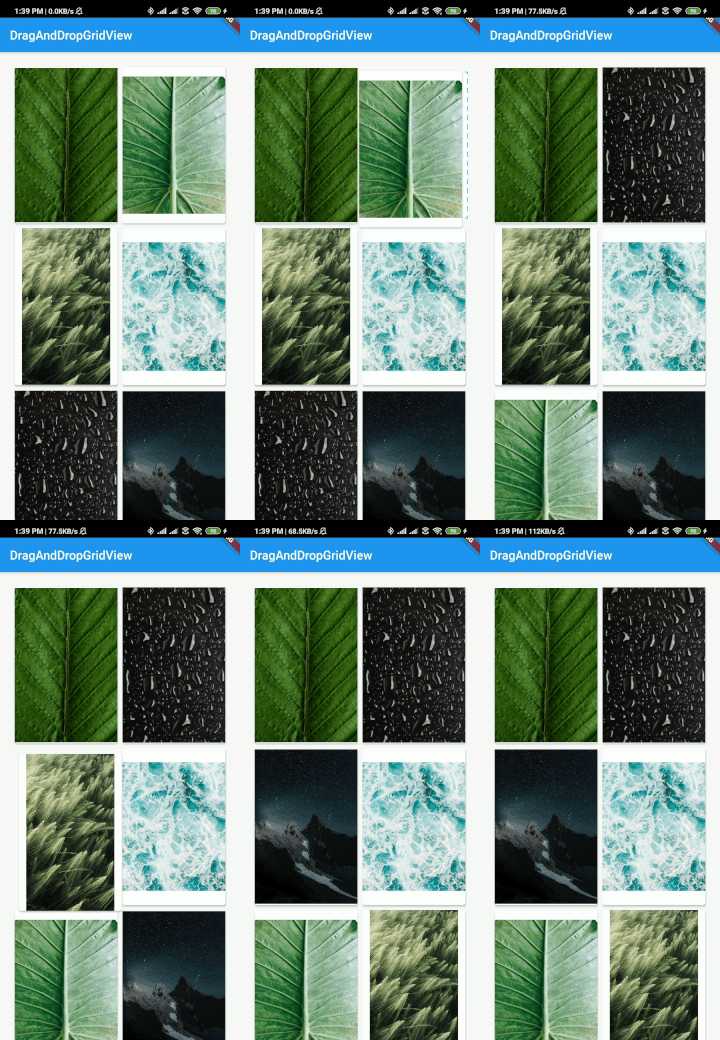
示例 #10:DragAndDropGridView 更改反馈
您可以通过将 isCustomFeedback 设置为 true 并将您的子项返回到此参数 feedback 来更改子项。
import 'package:drag_and_drop_gridview/devdrag.dart';
import 'package:flutter/material.dart';
import 'package:flutter/rendering.dart';
import 'dart:async';

import 'package:flutter/services.dart';

void main() {
 runApp(MyApp());
}

class MyApp extends StatefulWidget {
 @override
 _MyAppState createState() => _MyAppState();
}

class _MyAppState extends State<MyApp> {
 List<String> _imageUris = [
   "https://images.pexels.com/photos/4466054/pexels-photo-4466054.jpeg?auto=compress&cs=tinysrgb&dpr=2&h=650&w=940",
   "https://images.pexels.com/photos/4561739/pexels-photo-4561739.jpeg?auto=compress&cs=tinysrgb&dpr=1&w=500",
   "https://images.pexels.com/photos/4507967/pexels-photo-4507967.jpeg?auto=compress&cs=tinysrgb&dpr=1&w=500",
   "https://images.pexels.com/photos/4321194/pexels-photo-4321194.jpeg?auto=compress&cs=tinysrgb&dpr=1&w=500",
   "https://images.pexels.com/photos/1053924/pexels-photo-1053924.jpeg?auto=compress&cs=tinysrgb&dpr=1&w=500",
   "https://images.pexels.com/photos/1624438/pexels-photo-1624438.jpeg?auto=compress&cs=tinysrgb&dpr=2&h=750&w=1260",
   "https://images.pexels.com/photos/1144687/pexels-photo-1144687.jpeg?auto=compress&cs=tinysrgb&dpr=2&h=750&w=1260",
   "https://images.pexels.com/photos/2589010/pexels-photo-2589010.jpeg?auto=compress&cs=tinysrgb&dpr=2&h=750&w=1260"
 ];

 int variableSet = 0;
 ScrollController _scrollController;
 double width;
 double height;

 @override
 void initState() {
   super.initState();
 }

 @override
 Widget build(BuildContext context) {
   return MaterialApp(
     home: Scaffold(
       appBar: AppBar(
         title: const Text('DragAndDropGridView'),
       ),
       body: Center(
         child: DragAndDropGridView(
           controller: _scrollController,
           gridDelegate: SliverGridDelegateWithFixedCrossAxisCount(
             crossAxisCount: 2,
             childAspectRatio: 3 / 4.5,
           ),
           padding: EdgeInsets.all(20),
           itemBuilder: (context, index) => Card(
             elevation: 2,
             child: LayoutBuilder(builder: (context, costrains) {
               if (variableSet == 0) {
                 height = costrains.maxHeight;
                 width = costrains.maxWidth;
                 variableSet++;
               }
               return GridTile(
                 child: Image.network(
                   _imageUris[index],
                   height: height,
                   width: width,
                 ),
               );
             }),
           ),
           isCustomFeedback: true,
           feedback: (pos) => Image.asset(
             "gifs/draganddropbg.jpg",
             height: height,
             width: width,
           ),
           itemCount: _imageUris.length,
           onWillAccept: (oldIndex, newIndex) => true,
           onReorder: (oldIndex, newIndex) {
             final temp = _imageUris[oldIndex];
             _imageUris[oldIndex] = _imageUris[newIndex];
             _imageUris[newIndex] = temp;

             setState(() {});
           },
         ),
       ),
     ),
   );
 }
}
结果

支持
您还可以通过购买咖啡来支持我们。您的支持不胜感激。 ?


