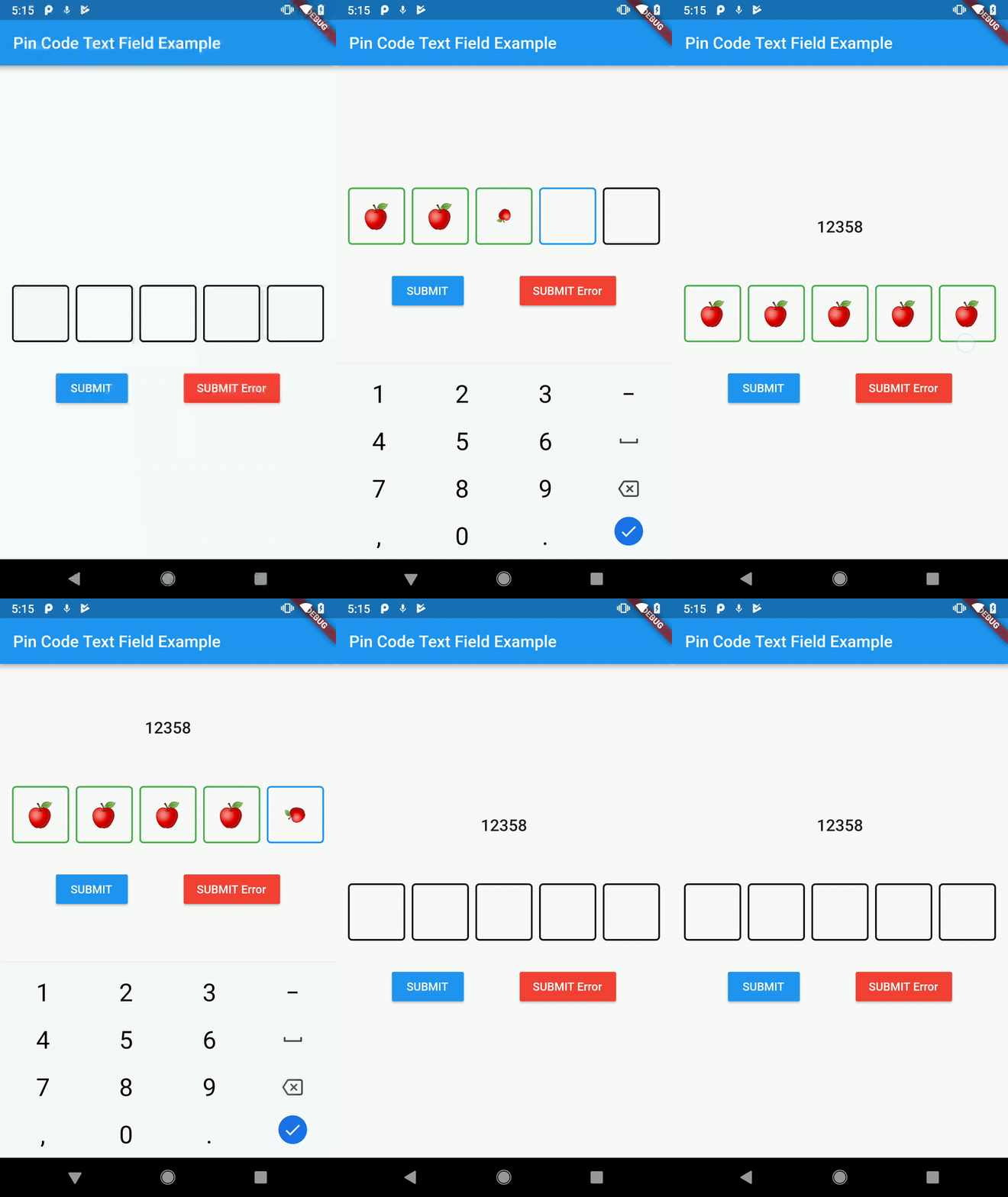
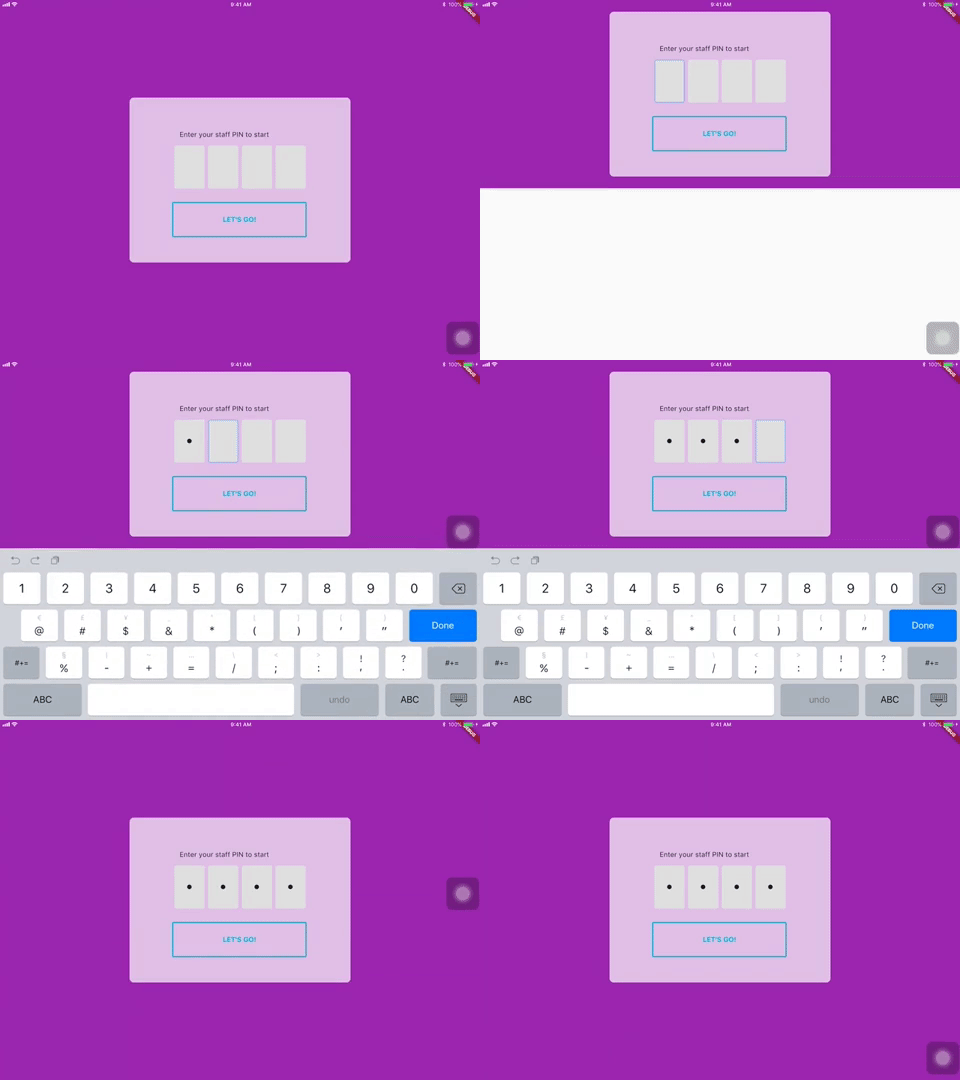
pin_code_text_field
这是一个用于输入密码的 Flutter 小部件。适用于登录和 OTP 等用例。
用法
将此包用作库
- 依赖它
将此添加到您的 package 的 pubspec.yaml 文件中
dependencies:
  pin_code_text_field: ^1.2.1
- 安装它
您可以从命令行安装包
使用 Flutter
$ flutter packages get
或者,您的编辑器可能支持 flutter packages get。请查看您编辑器的文档了解更多信息。
- 导入它
现在,在您的 Dart 代码中,您可以使用
import 'package:pin_code_text_field/pin_code_text_field.dart';
API
| 名称 | 类型 | 默认值 | 描述 |
|---|---|---|---|
| maxLength | 整数 | 4 | 密码长度与密码框的数量。 |
| hideCharacter | 布尔值 | 假 | 显示或隐藏密码。 |
| highlight | 布尔值 | 假 | 高亮显示焦点所在的密码框。 |
| highlightColor | 颜色 | Colors.black | 设置焦点密码框的颜色。 |
| pinBoxDecoration | BoxDecoration | ProvidedPinBoxDecoration._defaultPinBoxDecoration | 对单个密码框进行自定义。有关可用选项,请参阅 ProvidedPinBoxDecoration。 |
| pinTextStyle | TextStyle | 用于设置密码字符样式的 TextStyle。 | |
| maskCharacter | 字符串 | "\u25CF" | 用于遮盖密码的特殊字符。仅当 hideCharacter 设置为 true 时才有效。 |
| pinBoxHeight | 双精度 | 70.0 | 密码框的高度。 |
| pinBoxWidth | 双精度 | 70.0 | 密码框的宽度。 |
| onDone | void Function(String) | 达到最大密码长度时的回调。 | |
| hasTextBorderColor | 颜色 | Colors.black | 设置包含文本的密码框的颜色。 |
| pinTextAnimatedSwitcherTransition | Function(Widget child, Animation |
文本出现/消失的动画,您可以编写自己的动画,也可以使用一些预设:1. PinCodeTextField.awesomeTransition 2. PinCodeTextField.defaultScalingTransition 3. PinCodeTextField.defaultRotateTransition | |
| pinTextAnimatedSwitcherDuration | 持续时间 | const Duration() | pinTextAnimatedSwitcherTransition 的持续时间。有关可用选项,请参阅 ProvidedPinBoxTextAnimation。 |
| errorBorderColor | 颜色 | Colors.red | 如果 hasError 设置为 true,则将所有文本框高亮显示为该颜色。 |
| onTextChange | Function(String) | 返回输入文本的回调。 | |
| hasError | 布尔值 | 假 | 将所有边框颜色设置为 errorBorderColor。 |
| autofocus | 布尔值 | 假 | 进入视图时自动聚焦。 |
| wrapAlignment | WrapAlignment | WrapAlignment.start | 包裹式密码框行的对齐方式。 |
| pinCodeTextFieldLayoutType | PinCodeTextFieldLayoutType | PinCodeTextFieldLayoutType.NORMAL | 使用 PinCodeTextFieldLayoutType.AUTO_ADJUST_WIDTH 自动调整宽度,使用 PinCodeTextFieldLayoutType.WRAP 包裹密码框行。 |
示例
class MyHomePageState extends State<MyHomePage> {
  TextEditingController controller = TextEditingController();
  String thisText = "";
  int pinLength = 4;

  bool hasError = false;
  String errorMessage;


  @override
  Widget build(BuildContext context) {
    return Scaffold(
      appBar: AppBar(
        title: Text("Pin Code Text Field Example"),
      ),
      body: Container(
        child: SingleChildScrollView(
          child: Column(
            mainAxisAlignment: MainAxisAlignment.center,
            crossAxisAlignment: CrossAxisAlignment.center,
            children: <Widget>[
              Padding(
                padding: const EdgeInsets.only(bottom: 60.0),
                child: Text(thisText, style: Theme.of(context).textTheme.title),
              ),
              PinCodeTextField(
                autofocus: false,
                controller: controller,
                hideCharacter: true,
                highlight: true,
                highlightColor: Colors.blue,
                defaultBorderColor: Colors.black,
                hasTextBorderColor: Colors.green,
                maxLength: pinLength,
                hasError: hasError,
                maskCharacter: "?",

                onTextChanged: (text) {
                  setState(() {
                    hasError = false;
                  });
                },
                onDone: (text){
                  print("DONE $text");
                },
                pinCodeTextFieldLayoutType: PinCodeTextFieldLayoutType.AUTO_ADJUST_WIDTH,
                wrapAlignment: WrapAlignment.start,
                pinBoxDecoration: ProvidedPinBoxDecoration.underlinedPinBoxDecoration,
                pinTextStyle: TextStyle(fontSize: 30.0),
                pinTextAnimatedSwitcherTransition: ProvidedPinBoxTextAnimation.scalingTransition,
                pinTextAnimatedSwitcherDuration: Duration(milliseconds: 300),
              ),
              Visibility(
                child: Text(
                  "Wrong PIN!",
                  style: TextStyle(color: Colors.red),
                ),
                visible: hasError,
              ),
              Padding(
                padding: const EdgeInsets.only(top: 32.0),
                child: Row(
                  mainAxisAlignment: MainAxisAlignment.spaceEvenly,
                  children: <Widget>[
                    MaterialButton(
                      color: Colors.blue,
                      textColor: Colors.white,
                      child: Text("+"),
                      onPressed: () {
                        setState(() {
                          this.pinLength++;
                        });
                      },
                    ),
                    MaterialButton(
                      color: Colors.blue,
                      textColor: Colors.white,
                      child: Text("-"),
                      onPressed: () {
                        setState(() {
                          this.pinLength--;
                        });
                      },
                    ),
                    MaterialButton(
                      color: Colors.blue,
                      textColor: Colors.white,
                      child: Text("SUBMIT"),
                      onPressed: () {
                        setState(() {
                          this.thisText = controller.text;
                        });
                      },
                    ),
                    MaterialButton(
                      color: Colors.red,
                      textColor: Colors.white,
                      child: Text("SUBMIT Error"),
                      onPressed: () {
                        setState(() {
                          this.hasError = true;
                        });
                      },
                    ),
                  ],
                ),
              )
            ],
          ),
        ),
      ),
    );
  }
}
心愿单
本地化(从左到右,从右到左)- 高亮动画
- 密码框动画